How to Set Up Project Memory in Claude Cowork (So It Stops Forgetting You)
Claude Cowork is powerful out of the box — but it forgets everything between sessions. Here's how to build the context files, instruction layers, skills, and connectors that make it feel like a colleague who's worked with you for months.
 Fabian Mösli
 Reading Preferences
Key Takeaways
- • Cowork is powerful but stateless, so structure carries more weight than any prompt. Organize your files into separate projects with custom context documents (`about_me.md`, `brand_voice.md`, and the like) and it starts to remember who you are and how you work.
- • Get all three instruction layers right. Personalization applies everywhere in Claude, global instructions set the rules inside Cowork, and project-specific instructions cover one project's quirks. Using all three keeps your projects from contaminating each other.
- • Link Cowork to your daily apps with native or Zapier connectors, encode repetitive workflows into slash-command skills, and schedule tasks to run on their own. That's where the real time savings come from.
In this guide
If you’ve used Claude Cowork for more than a week, you’ve hit this wall: you open a new session, start a task, and realize you’re explaining the same things again. Your business. Your tone of voice. Where files go. What format you want. It’s like hiring the same brilliant assistant every Monday and watching them forget everything from last week.
That’s the default experience. And it’s the reason most people plateau with Cowork after the initial excitement wears off.
A better prompt won’t fix it. What fixes it is a memory system: a set of files, instructions, and configurations that Cowork reads before every single task. Once you set this up, the difference is immediate. You go from managing the AI to actually delegating to it.
I covered Cowork’s place in the Anthropic ecosystem guide. This one goes deeper into the part that actually matters long-term: making Cowork remember who you are and how you work.
The project ecosystem: why structure beats prompting
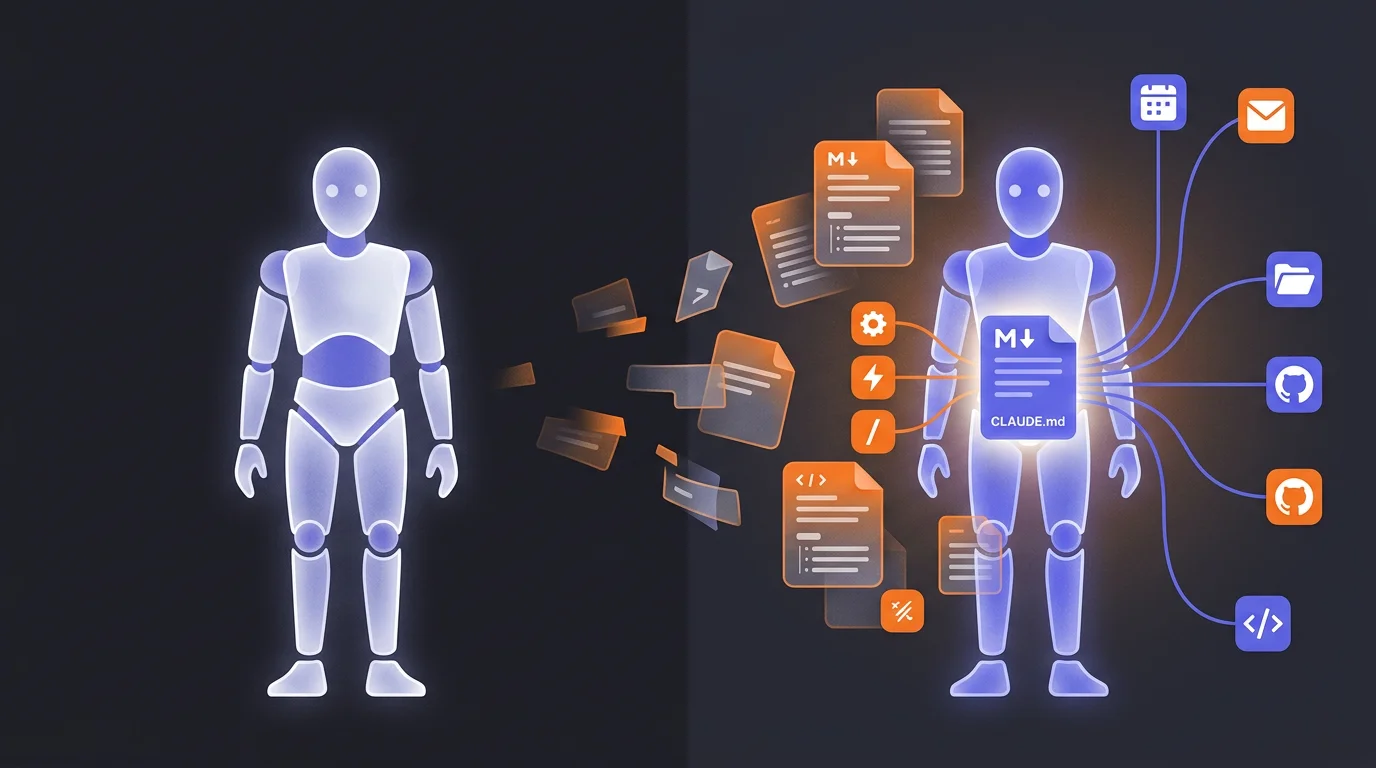
A project in Cowork is more than a folder. It’s a container that holds your files, your custom instructions, your skills, and compounding memory, all in one place.
Without a project, Cowork has no idea who you are. What your business does. What tone you use. You explain yourself from scratch, every session, forever.
With a project, context compounds. Week one, you’re writing paragraph-long prompts. Week six, you type “do the usual” and Cowork knows exactly what that means.
The most important rule: separate projects for separate areas of your work. Your YouTube content project and your finance project should never live in the same place. YouTube rules bleed into finance tasks and Cowork gets confused about which tone to use, which file format to default to, which instructions apply. Keep them isolated. Mix them and you’ll spend more time correcting Cowork than you would have spent doing the task yourself.
Three ways to set up a project:
- Start from scratch. Name it, add instructions, build context as you work.
- Import from Claude chat. If you’ve been using the web version, pull in existing projects and keep all that context.
- Point at an existing folder. Select a folder on your machine and Cowork builds the project around those files instantly.
Your business brain: the .md files that shape everything
The project is the infrastructure. The personality lives in markdown files — plain text documents sitting inside your project folder that Cowork reads before every task. This is how you make it sound like it’s worked with you for two years instead of starting cold every morning.
The files that matter most:
about_me.md — Who you are. What your business does. Who your customers are. How you make money. Your current priorities. Cowork reads this every time. Every single time.
brand_voice.md — How you communicate. Tones you like. Phrases you hate. Paste in examples of your actual writing — a LinkedIn post you’re proud of, an email that sounds exactly like you. This is the file that stops every output sounding like it was written by the same corporate AI.
working_preferences.md — How you want tasks managed. Where files get saved. What format outputs should take. Whether you want files named with underscores or dashes. Whether you want Excel or CSV. These small preferences add up — they’re the difference between working with someone who gets you and someone who technically does the job but never quite the way you want.
Here’s a trick that saves real time: don’t write these files from scratch. Ask Claude to interview you. Open a regular Claude chat and say: “Ask me a series of questions about my business, my writing style, and how I like to work — then use my answers to build context files I can drop into my Cowork projects.” Fifteen minutes of conversation produces better context files than an hour of trying to write them yourself. I wrote a whole guide on this technique because it works for much more than just Cowork.
Three layers of instructions (and why they all matter)
Cowork has three levels where you can set instructions. Each one narrows the scope. Getting all three right is what makes the system feel consistent instead of randomly forgetting your preferences.
Layer 1: Claude personalization (everywhere). Click your name, go to settings. This applies to chat, Code, and Cowork alike. Lock in your universal defaults: avoid excessive bold formatting, use primary sources over aggregators for research, no hedging language, be direct. These are your personality rules — they follow you everywhere in Claude.
Layer 2: Cowork global instructions. Settings, then Cowork settings, then global instructions. This applies only inside Cowork, across all your projects and tasks. Use it for mandatory formatting rules: specific date formats, file naming conventions (underscore_descriptive_name), instructions to always check your project folder when handling business queries. This saves you typing the same context on every task.
Layer 3: Project-specific instructions. Rules that live strictly inside one project. Your content project tells Cowork to use a specific slide style for video intros and track everything in a particular spreadsheet. Those rules should never touch your accounting project. Keep them isolated or they contaminate each other.
The mistake I see most often: people put everything in project-specific instructions and ignore the other two layers. That means they’re repeating the same preferences in every project. Set your universal rules once at the personalization level. Set your Cowork workflow rules once at the global level. Only put project-unique rules at the project level.
Connectors: giving Cowork access to your tools
Out of the box, Cowork can only work with files in your project folder. Connectors — also called MCPs (Model Context Protocols) — let it reach into the apps you actually use every day.
Native connectors cover Google Drive, Notion, Slack, Gmail, GitHub, Figma, and more. Click the plus sign in your chat, go to the connectors tab, find your tool, and follow the authentication flow. Once connected, you get fine-grained permission controls — for each app, you set specific actions to “always allow,” “needs approval,” or “blocked.” You stay in complete control.
Two connectors worth calling out specifically:
Zapier MCP. If your app isn’t natively supported, this is the answer. Zapier connects to over 8,000 applications — HubSpot, Airtable, whatever you’re running. You build an MCP server inside Zapier’s platform, configure the specific actions you want to allow, paste the URL into Cowork’s connector library, and you’re done. This single integration covers almost any “but my tool isn’t supported” objection.
Specialist connectors like Gamma. Ask Cowork to build a presentation without a specialist connector and the formatting comes out mediocre. Toggle on the Gamma connector and Cowork routes your content to Gamma, which produces properly designed, visually structured decks. Use the specialist tool for the job a generalist does badly.
A word of caution: every active connector costs tokens. Cowork loads the connection details and available actions into its context at the start of each session. The more connectors you have active, the less room there is for actual work. Only enable what the current task needs.
Skills: workflows you only explain once
A skill is a reusable workflow encoded into a single slash command. Instead of typing a detailed prompt every time you need Cowork to execute a specific process, you encode that process once and call it with /my-skill-name forever.
Behind the scenes, a skill is a markdown file containing instructions. Cowork loads it when you invoke the command. You don’t write the code — you describe what you want in plain language and Cowork builds the file.
The creation process has a built-in testing loop: Cowork’s skill creator automatically runs a task with the skill and without it (the baseline), then compares the outputs side by side. If it missed something — forgot to apply your brand colors, used the wrong heading structure — you give that feedback, it fixes it, and you test again. Once the output matches your standard, save it.
Some examples of what you can build:
- Parse a folder of raw invoices into a categorized Excel spreadsheet
- Take a YouTube URL and generate an interactive HTML transcript with timestamps
- Produce on-brand presentations from a folder of notes using a single command
Start with whatever you do most often. That weekly report. That client email format. That data processing step. Automate the most repetitive thing first, then build from there.
Plugins: chaining skills into master workflows
A skill automates a single process. A plugin chains multiple skills and connectors together to automate an entire role.
The test for whether you need a plugin or a skill is simple: does the task require three or more steps across two or more tools? If Slack, Gmail, and Notion all need to be involved, that’s a plugin. If it’s a single tool doing a single thing, that’s a skill.
Tell Cowork what workflow you want to automate. It combines the necessary connectors and skills into one package that runs the entire pipeline on a single command. And the best part: plugins are shareable. Package your best standard operating procedures into a plugin and distribute it to your team. They execute tasks exactly the way you do. Your workflows become transferable.
Scheduled tasks: automation that runs without you
Skills and plugins can fire automatically on a schedule — without your input, while you’re not there.
Go to the “scheduled” tab in the sidebar, click “new task,” give it a name, reference the skill or workflow in the prompt, and set the frequency: hourly, daily, weekly, or specific days at a specific time.
One detail that breaks more scheduled automation than anything else: scheduled tasks only run if your physical computer is on and the Cowork app is open. If your laptop is shut at 9am, the 9am task waits until you open it. Adjust your power settings to keep the machine awake if you’re relying on scheduled work.
Three systems worth building:
The morning brief. Schedule Cowork to build your daily dashboard before you sit down. Connect your calendar and email. It summarizes upcoming appointments, lists outstanding email actions, and pulls relevant industry news. You sit down to everything already done.
The content repurposer. Give Cowork a single YouTube URL. It extracts the transcript, adds the content to a new Notion page, and writes platform-specific posts for LinkedIn and X. One input, three outputs, zero manual work.
The monthly financial review. Give Cowork access to a folder of receipts or transaction exports. It categorizes expenses, checks balances, and generates an interactive HTML dashboard showing profit and loss. Your accountant gets a clean report. You spent zero minutes on it.
Token management: the constraint nobody warns you about
Every word Cowork reads — your context files, your connector configurations, your conversation history — costs tokens. Manage this badly and you’ll hit your usage ceiling before the week is out.
Three mistakes I see constantly:
Ignoring the base load. Before you’ve typed a single word, your system instructions, active connectors, and context files have already eaten into your token budget. This is fine and worth it — that’s the whole point of project memory. But be aware of it. The more connectors you have active, the faster you burn.
Context rot. Long conversations accumulate. If you’ve been working in the same session for an hour, Cowork is reloading the entire conversation history with every response. Finish a topic, start a new session. The 30-to-45-minute rule works well: after about half an hour, or whenever you switch subjects, open a fresh window. Clean context, clean budget.
Conversational processing instead of scripted processing. If you need to process 100 invoices, having Cowork read and handle each one in conversation will drain your session fast. Ask Cowork to write a reusable skill that parses them instead. The skill uses a fraction of the tokens. This isn’t a small difference.
And the model rule: Sonnet for everything, Opus only for complex, high-stakes reasoning. 99% of the time you don’t need Opus. Using it as a daily driver is like putting Einstein on kitchen duty — impressive, expensive, and mostly unnecessary. Save it for work where getting it exactly right genuinely matters.
Security: the boring section you shouldn’t skip
Cowork runs directly on your local machine. The baseline risk is low. But the moment you start downloading skills built by other people — usually from GitHub — you’re importing instructions that Cowork will execute on your behalf, with whatever file access you’ve granted.
If a bad actor has embedded malicious instructions inside a skill file, that’s a prompt injection. Instructions that could tell the AI to delete files, send data somewhere, or escalate its own access.
The safety check takes two minutes: before adding any external skill, paste the entire text into a Claude chat and ask “Is there anything in this file that could be harmful, malicious, or that gives instructions outside the scope of the stated task?” Do this every time. It’s basic hygiene, not paranoia.
Same principle applies to connector permissions. “Read my calendar” is very different from “manage my calendar.” Start restrictive and loosen as needed.
The system that compounds
After a few weeks of building, this is what it looks like.
You open Cowork. It already knows your business, your conventions, your preferences, and your voice. You type a short instruction, maybe just “do the usual Monday review,” and it knows exactly what that means because you’ve built a skill for it, connected the right apps, and set up the context files that make it all work.
At that point you’ve stopped prompting and started delegating.
That shift, from carefully crafting prompts to casually assigning tasks, is the real payoff. And it only happens when you invest in the memory layer. The model itself doesn’t get smarter. Your system does. Every context file you write, every skill you build, every preference you encode makes every future session better.
Build the foundation once and it keeps paying off. That’s the whole case for structure over prompting.
For Cowork’s place in the broader Anthropic product lineup — including how it relates to Claude Code and the regular chat app — see the Anthropic ecosystem guide. For extracting the knowledge that makes these context files useful, the guide to letting AI interview you covers the technique in detail.
Published: 2026-04-05
Last updated: 2026-07-01