No. 08 · Case study · Word document
The Blueprint
A 26-page Word document made from one guide
One of my longest guides, laid out as the kind of Word document you'd hand to your leadership team: a cover, contents, a one-page summary, eight new figures where the text describes something you can draw, tick boxes you can click, and a one-page map to print and pin up. Claude Code made it from one prompt of mine and checked every page by looking at it. Flip through it here, or download the Word file and the PDF.
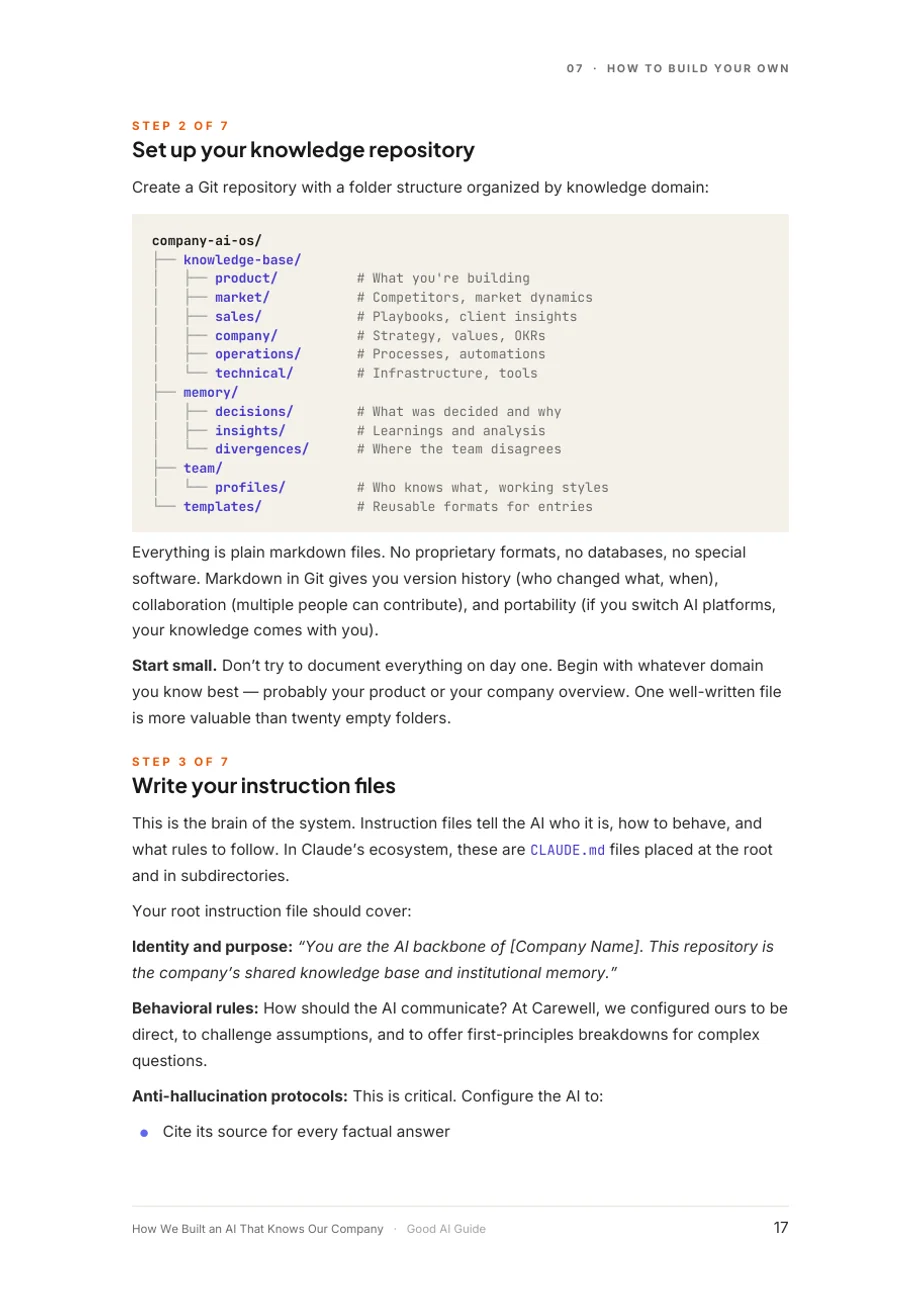
The pages below are pictures. The same text is in the guide online, and the Word file and the PDF have real headings and a description of every figure.

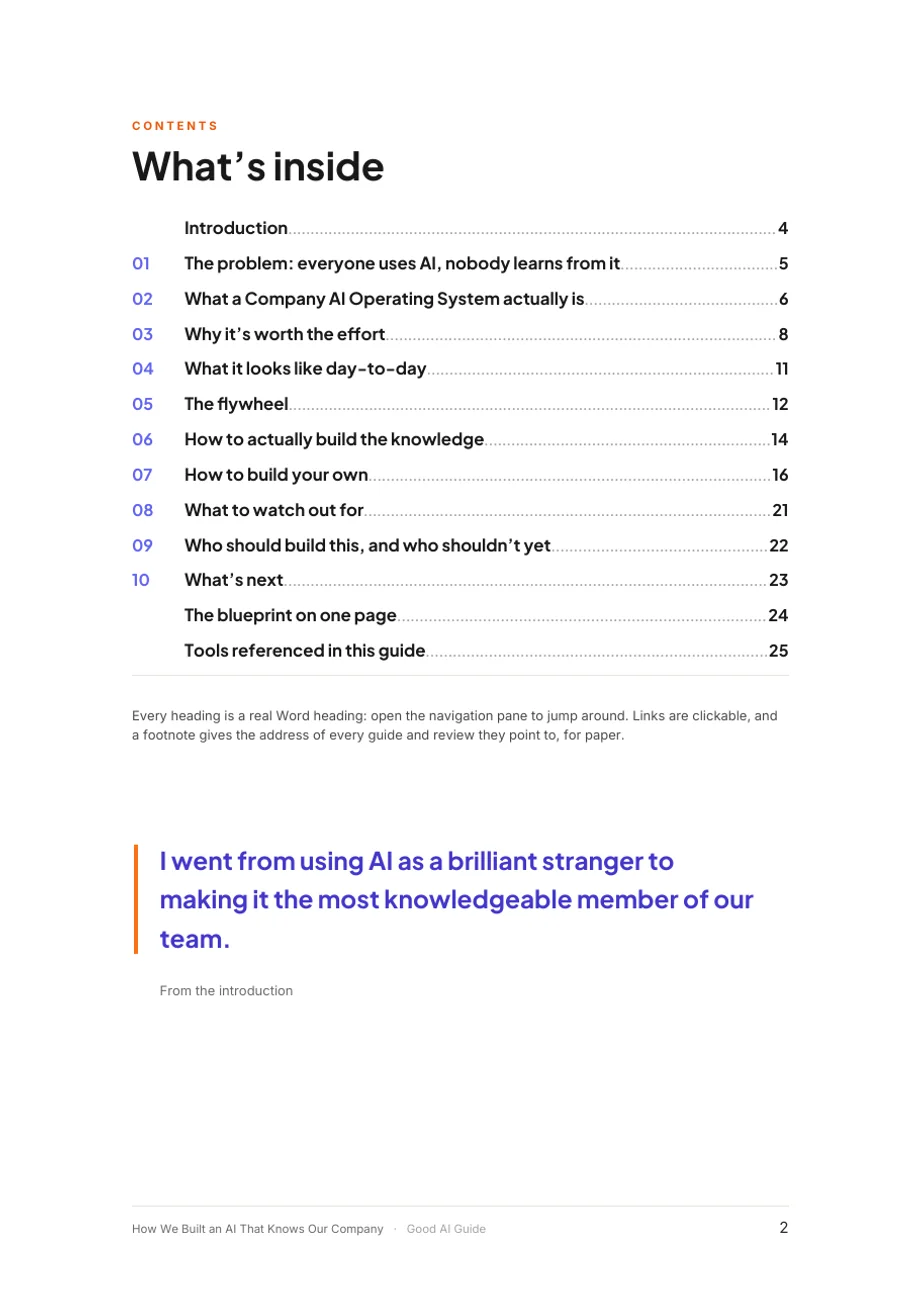
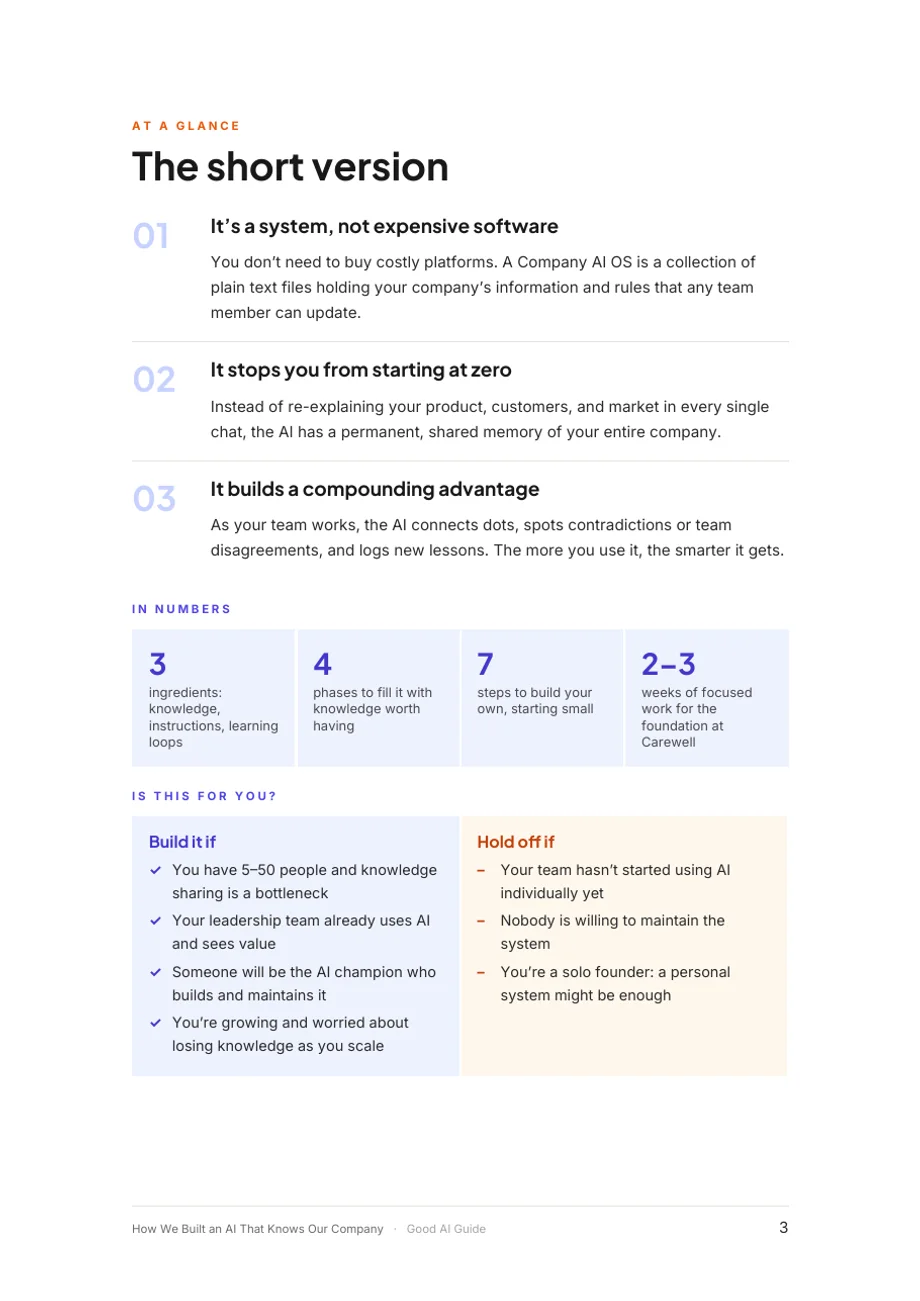
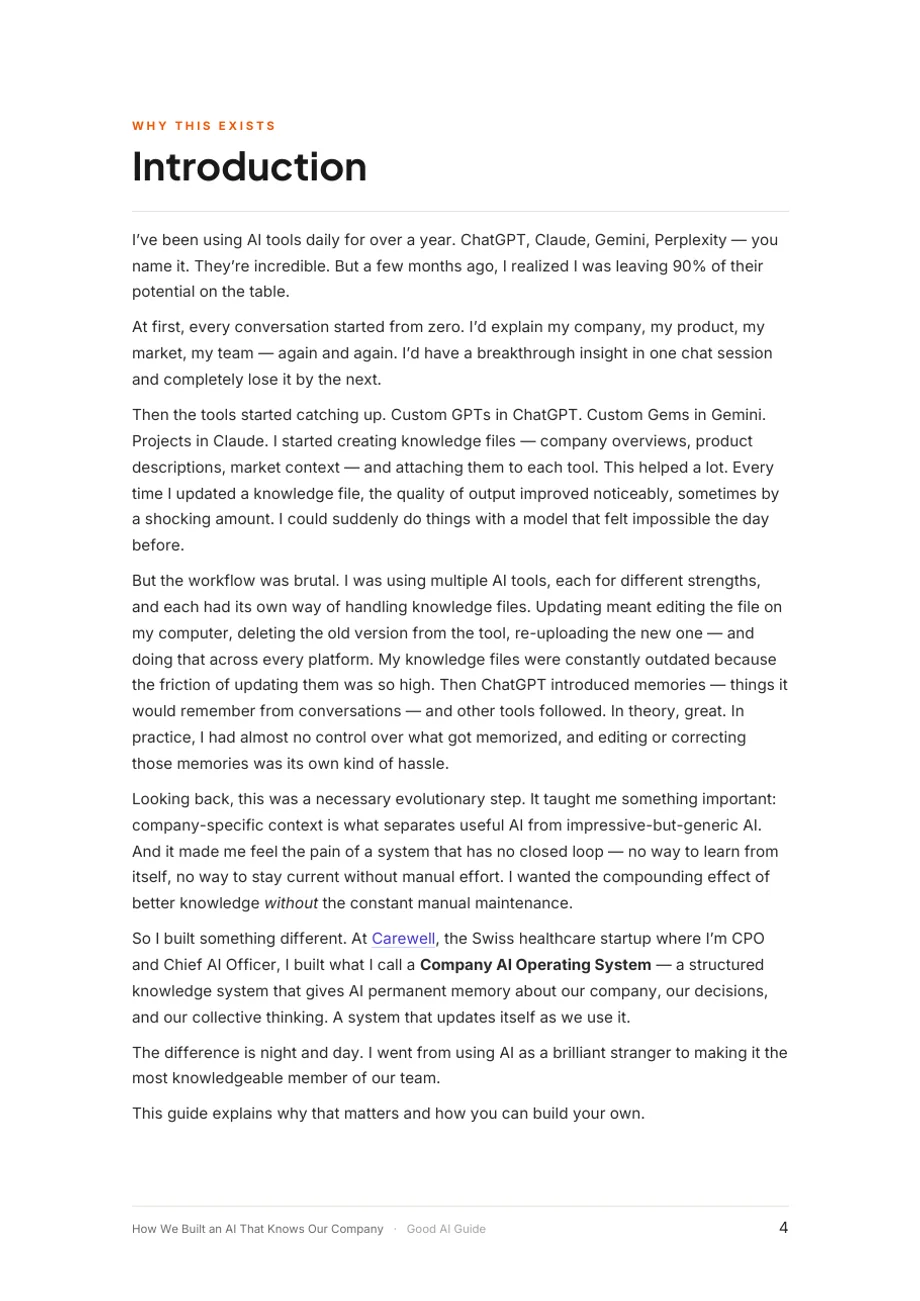
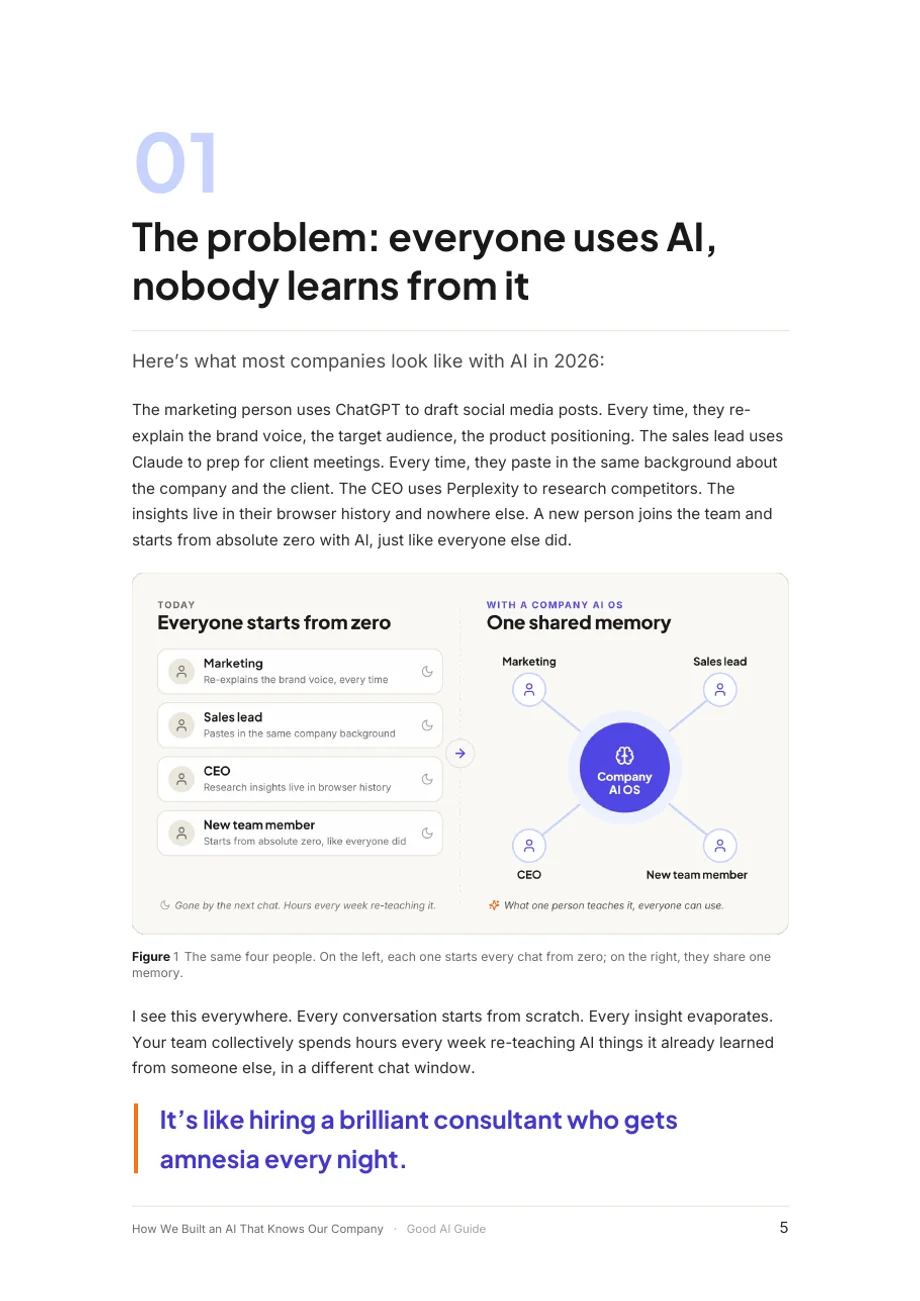
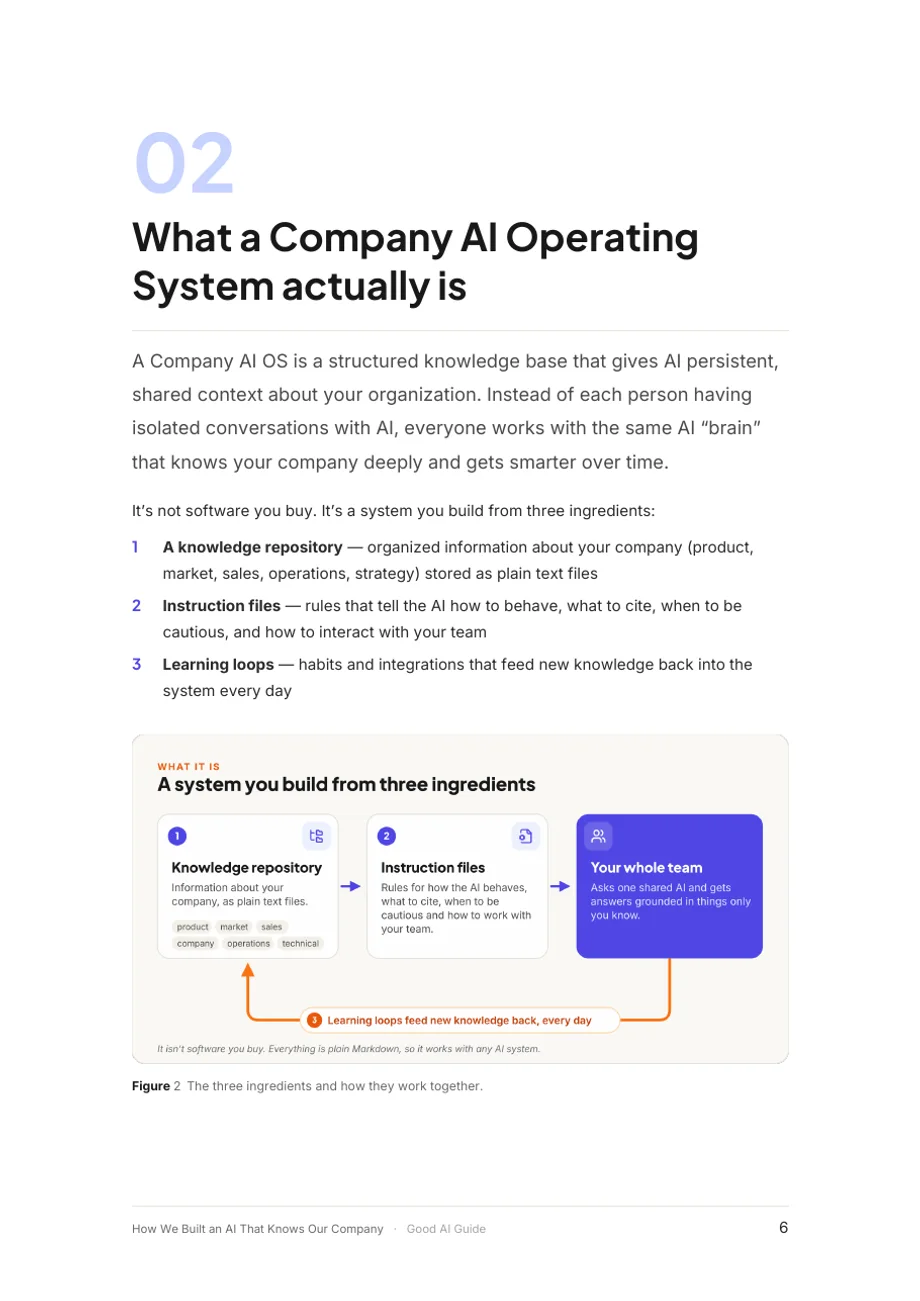
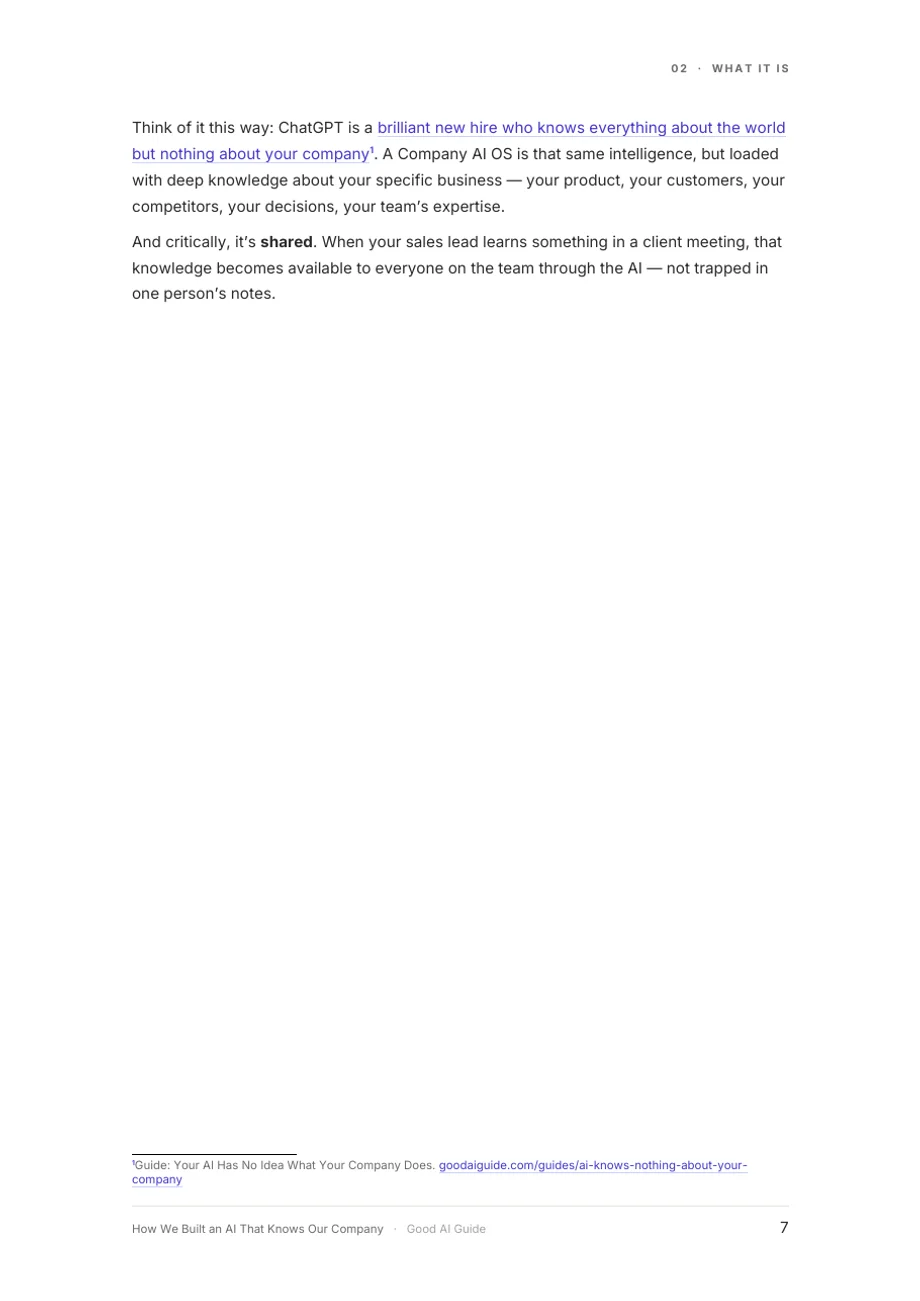
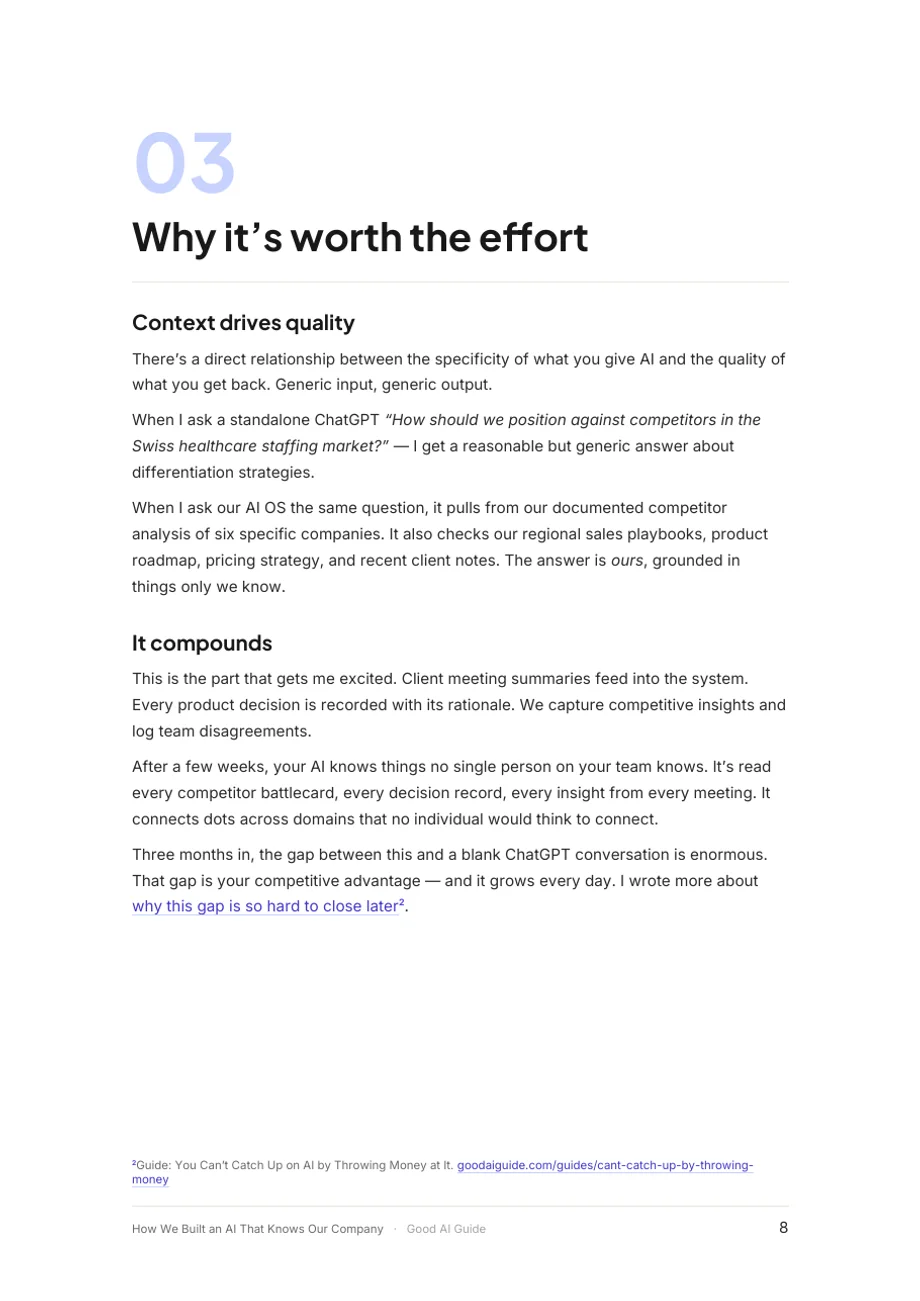
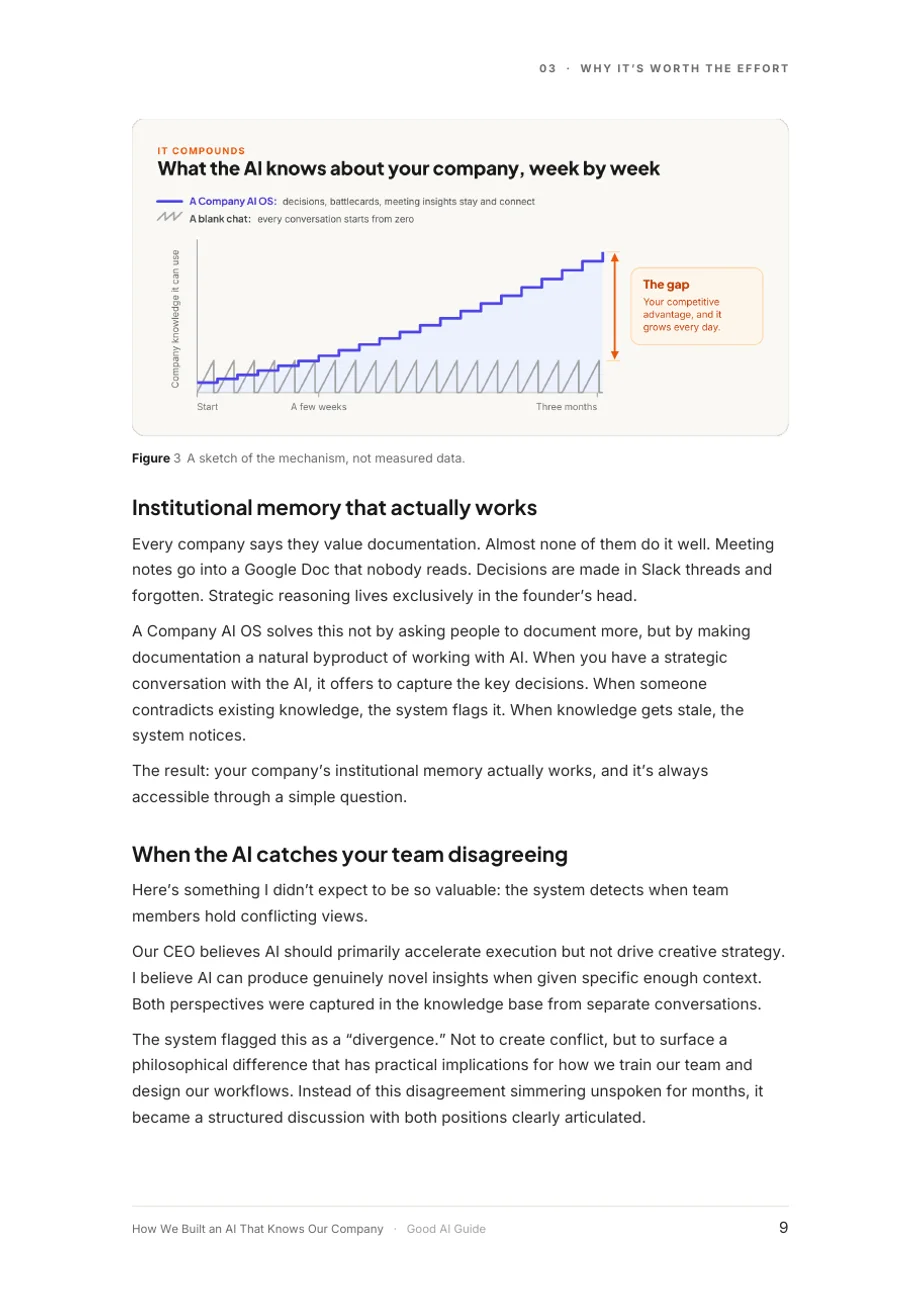
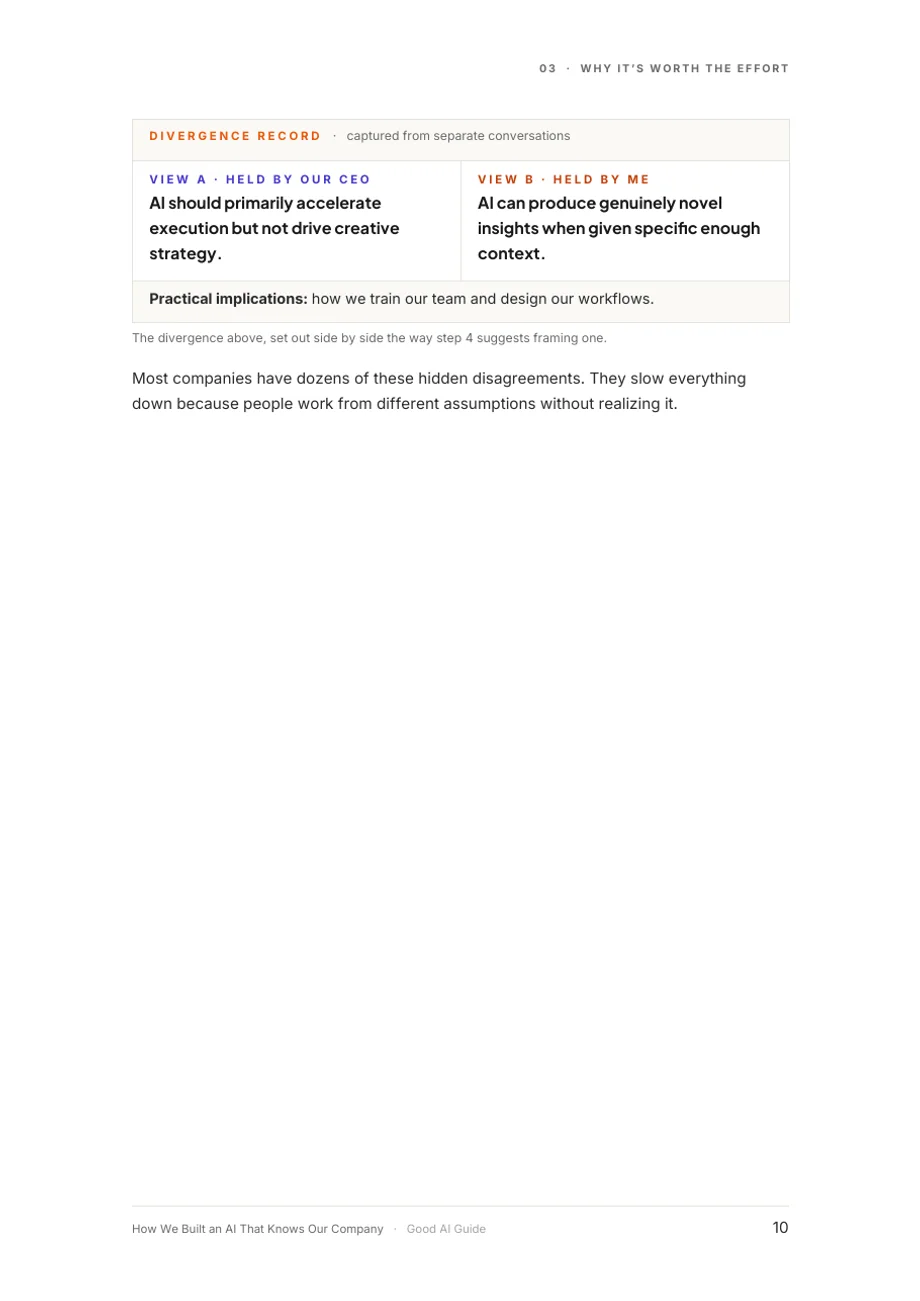
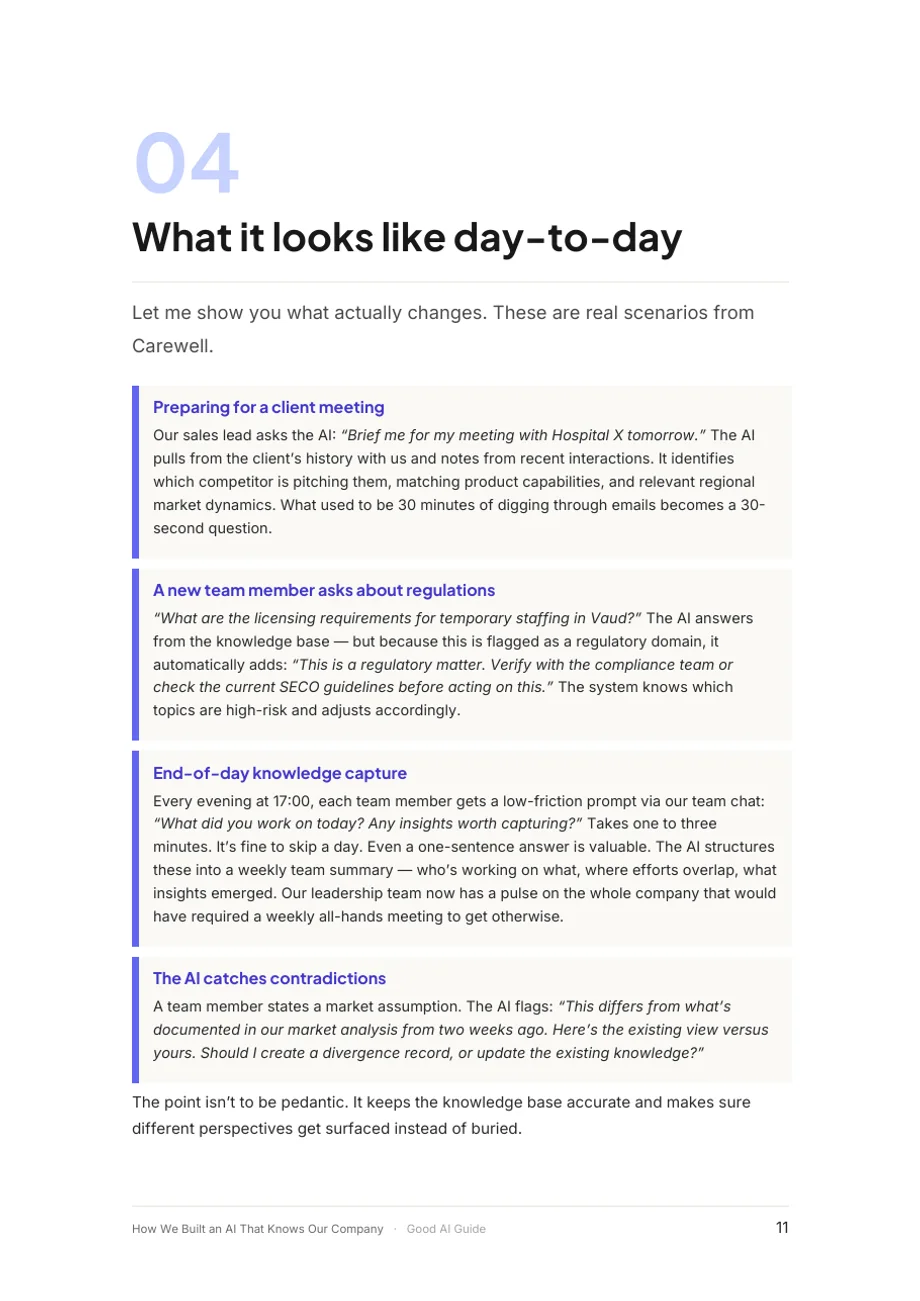
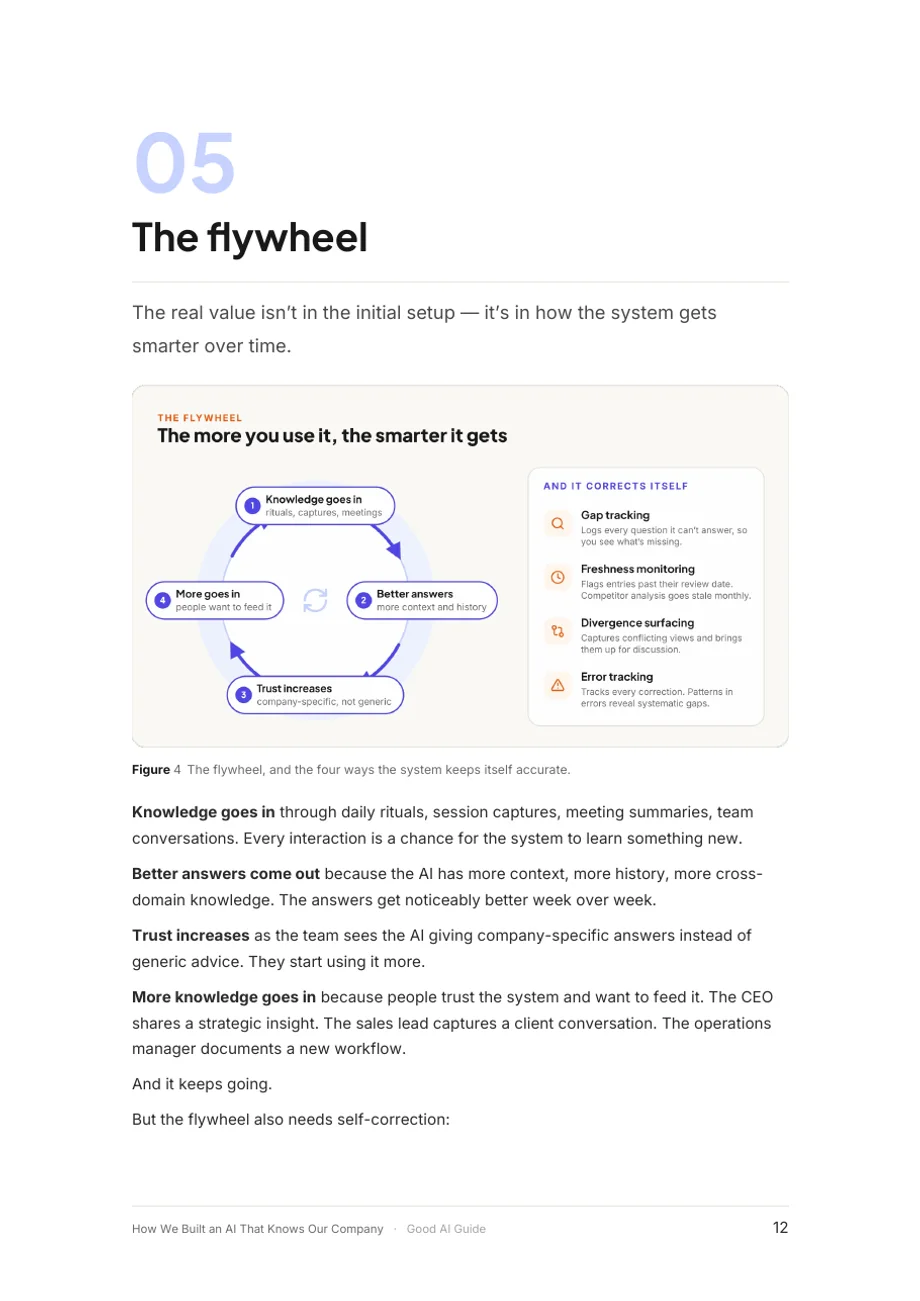
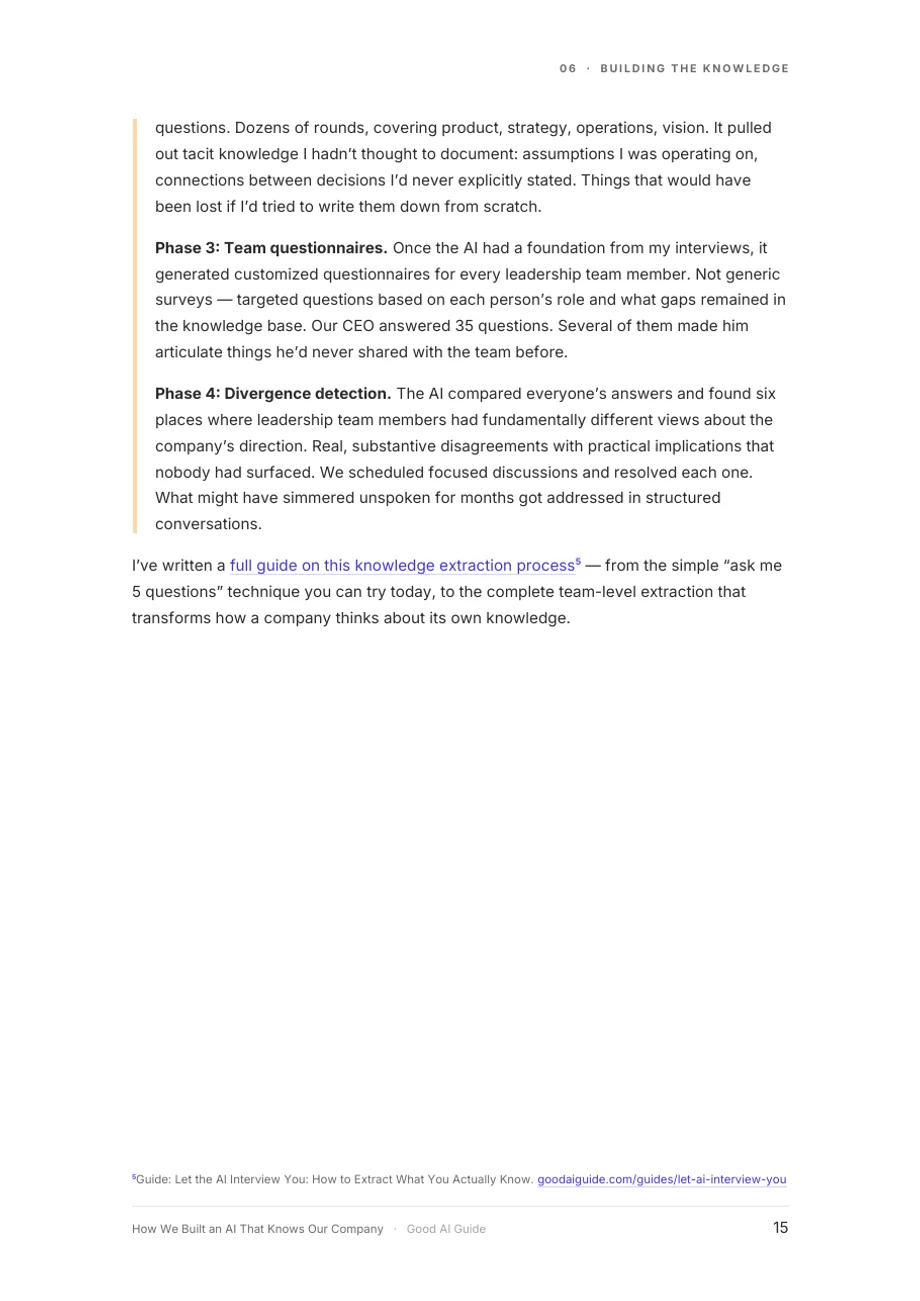
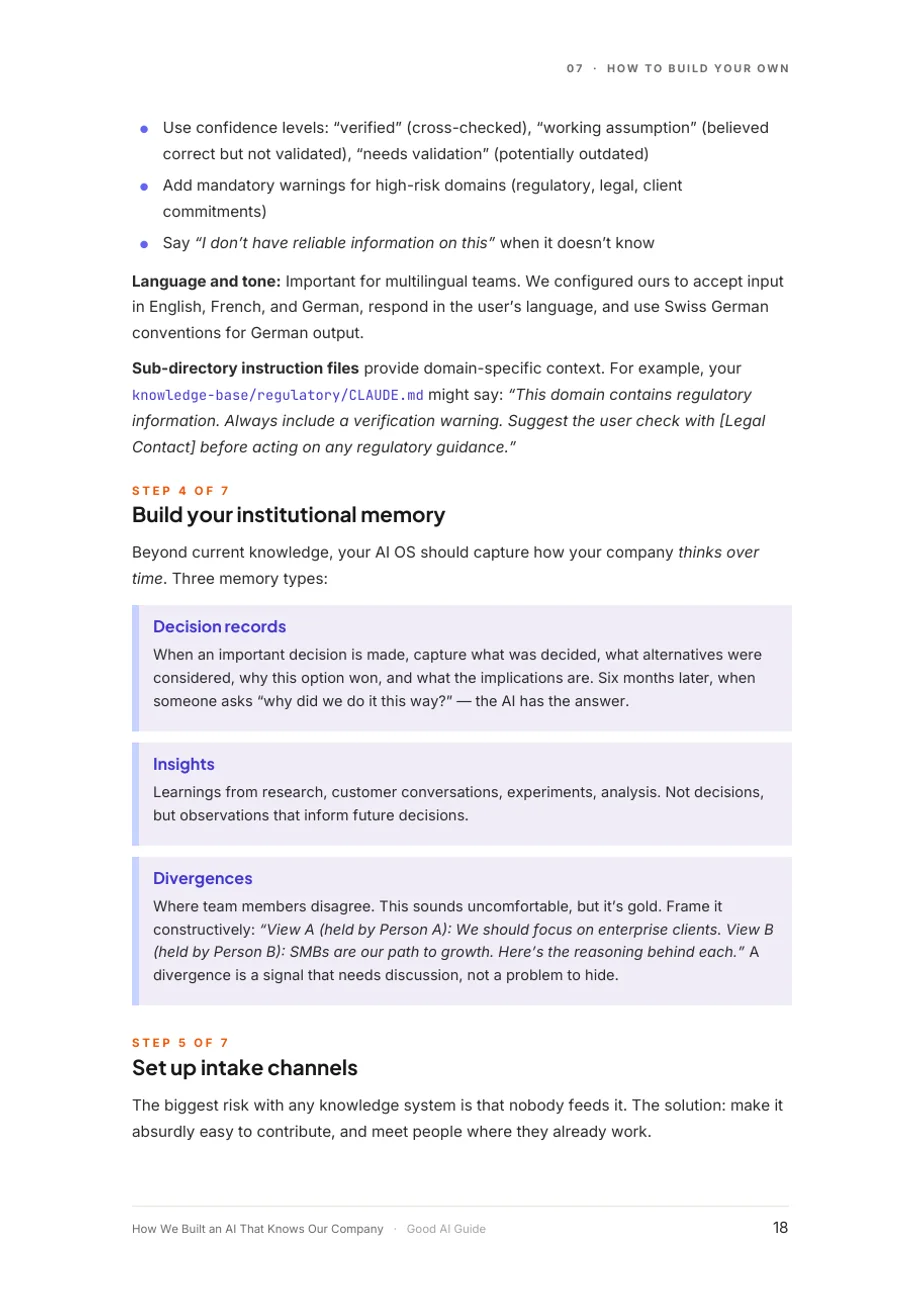
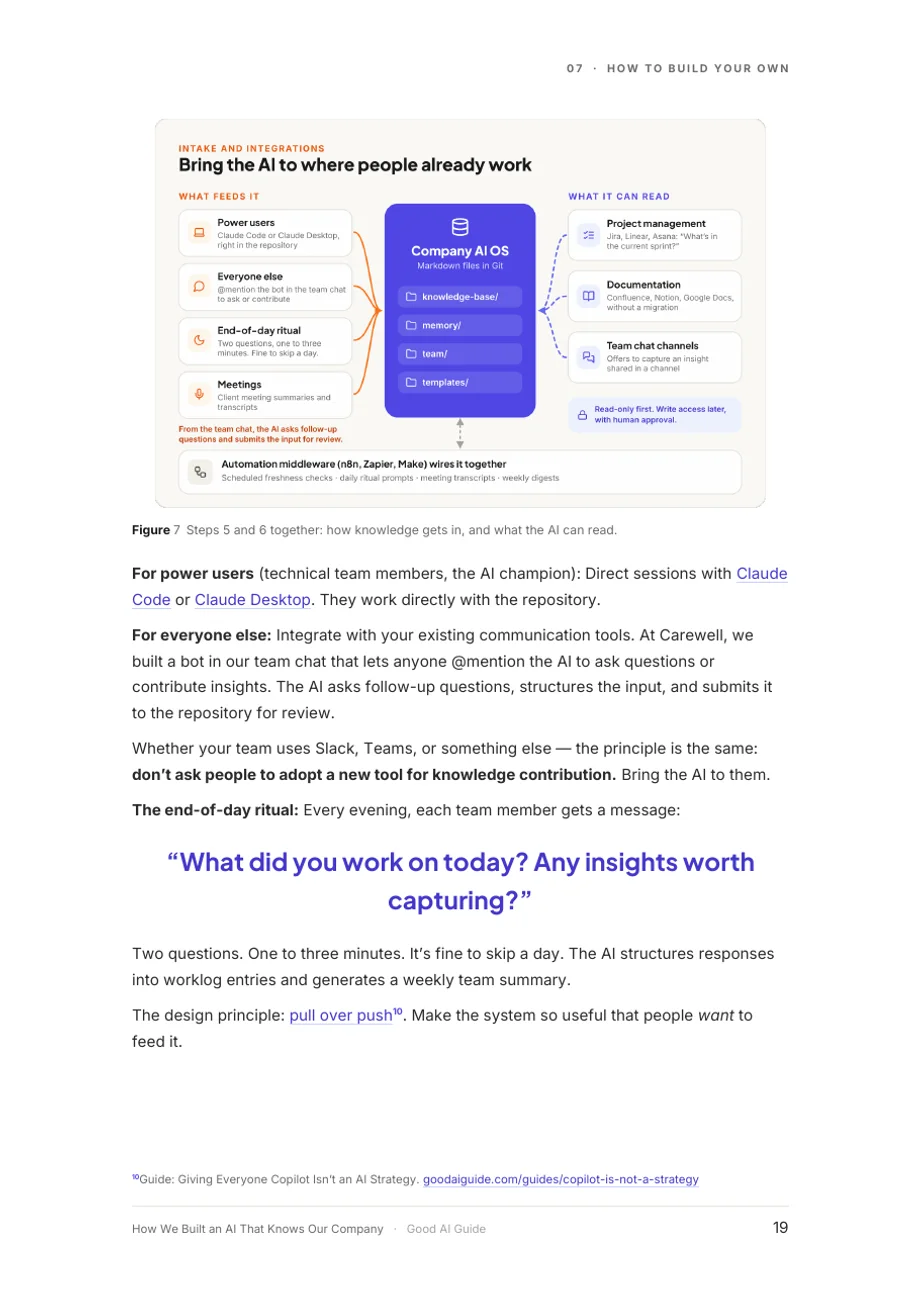
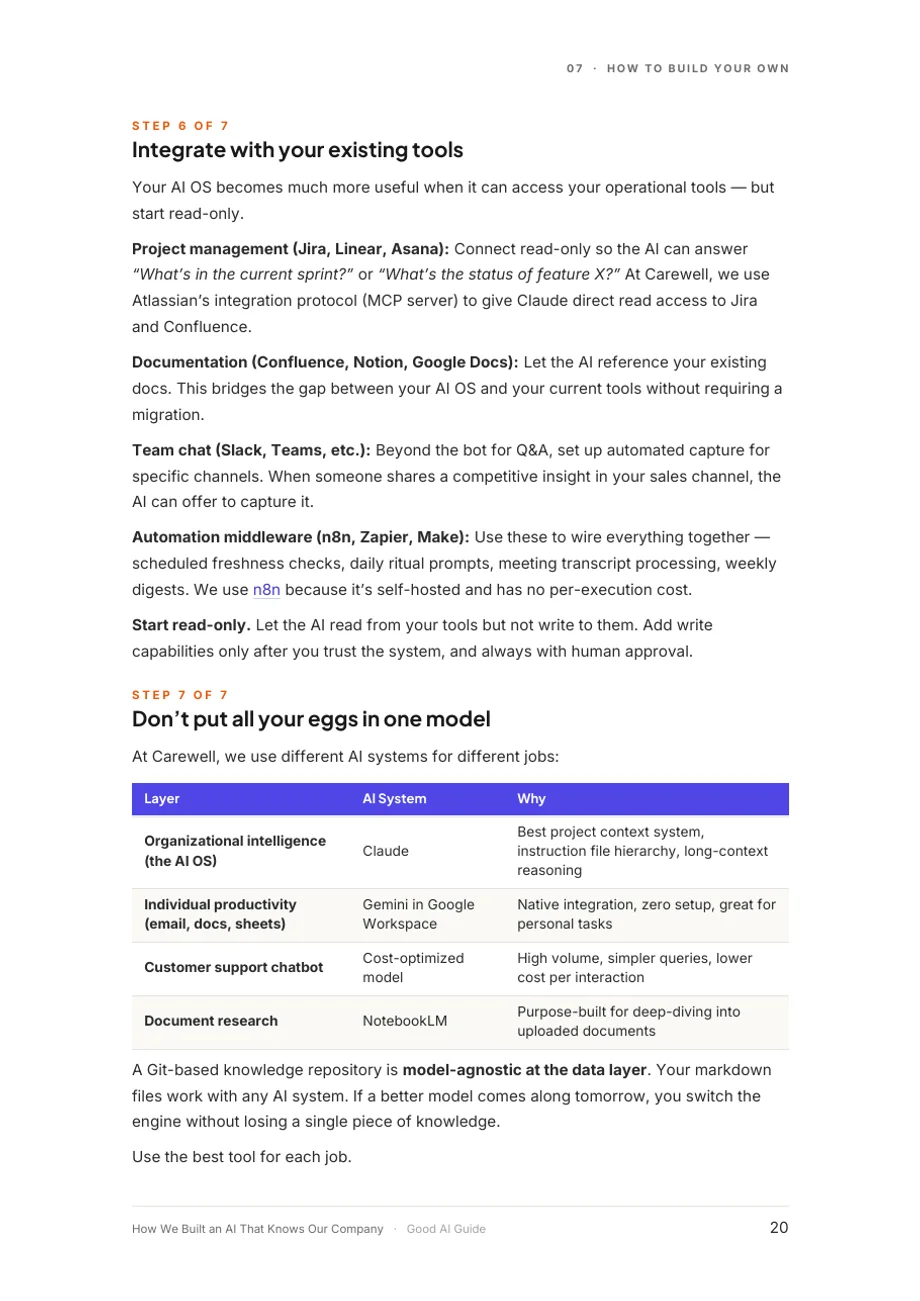
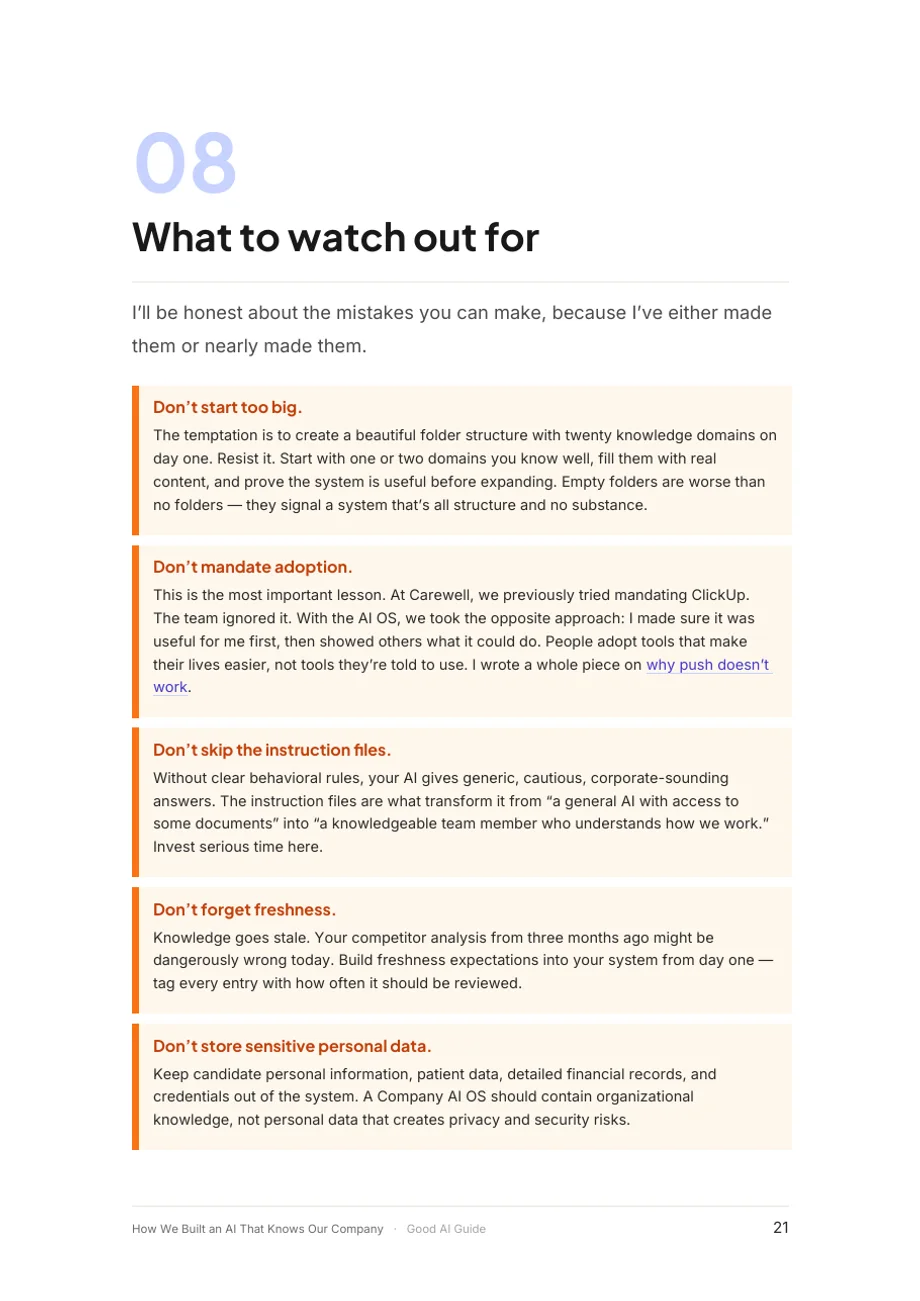
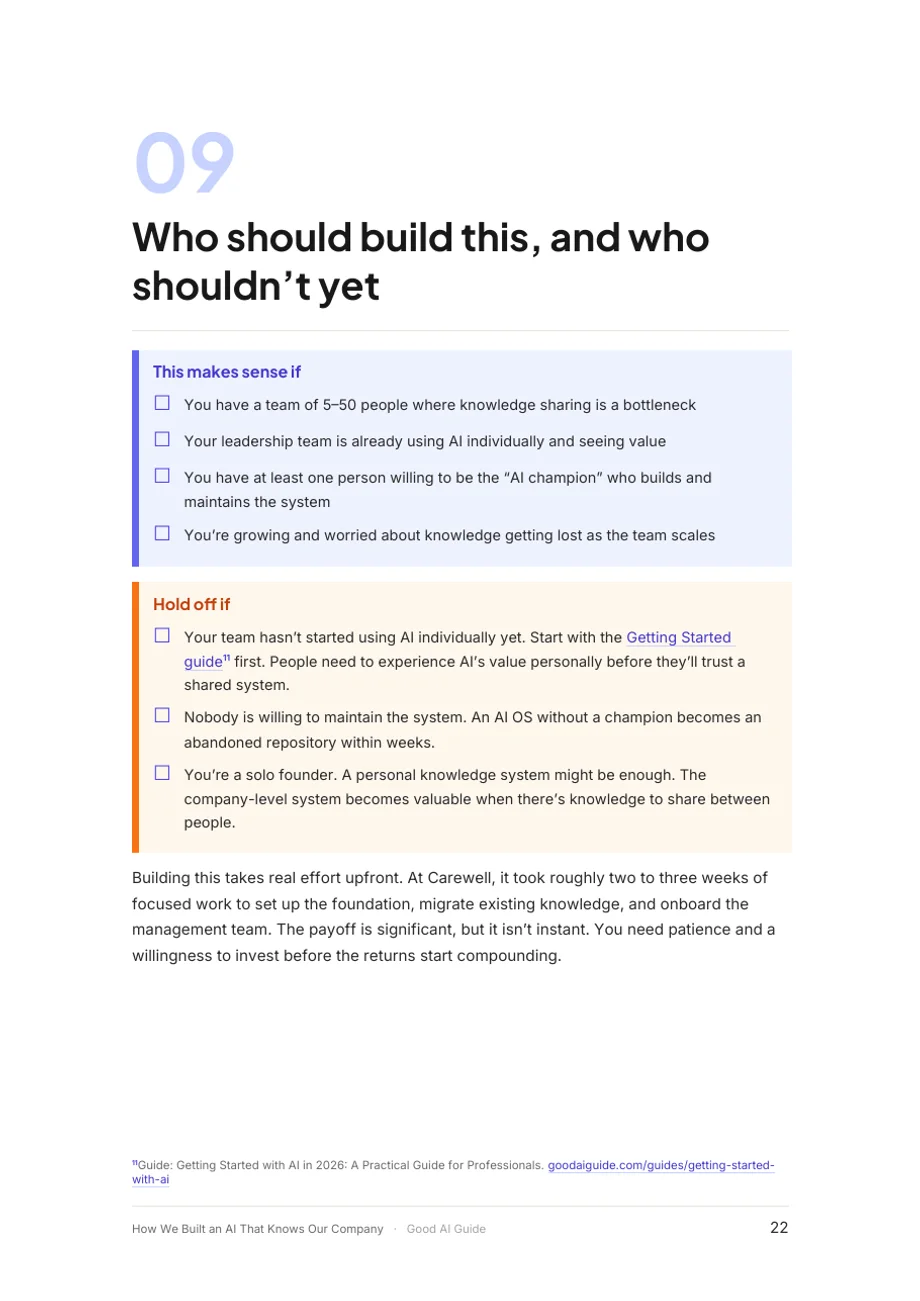
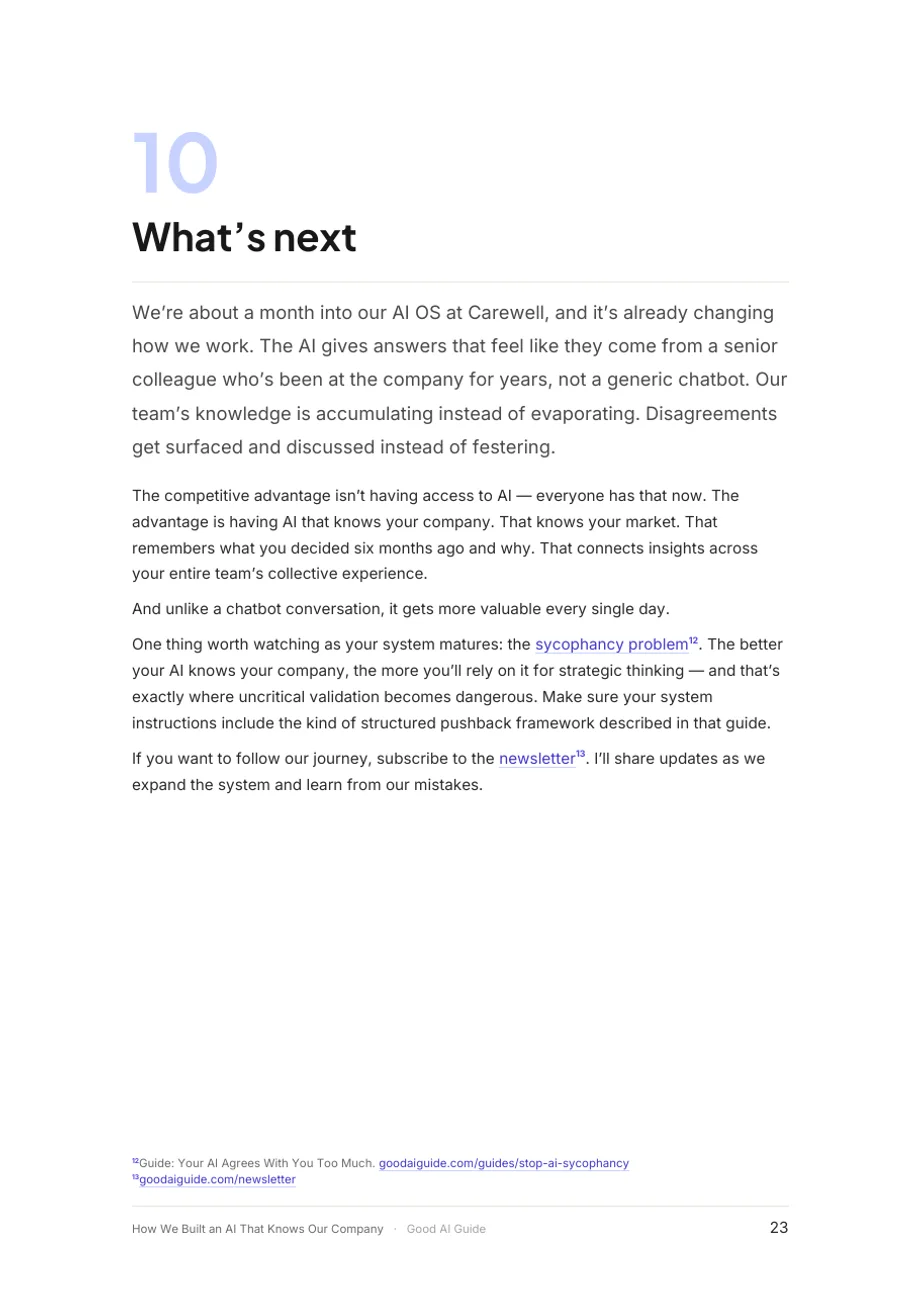
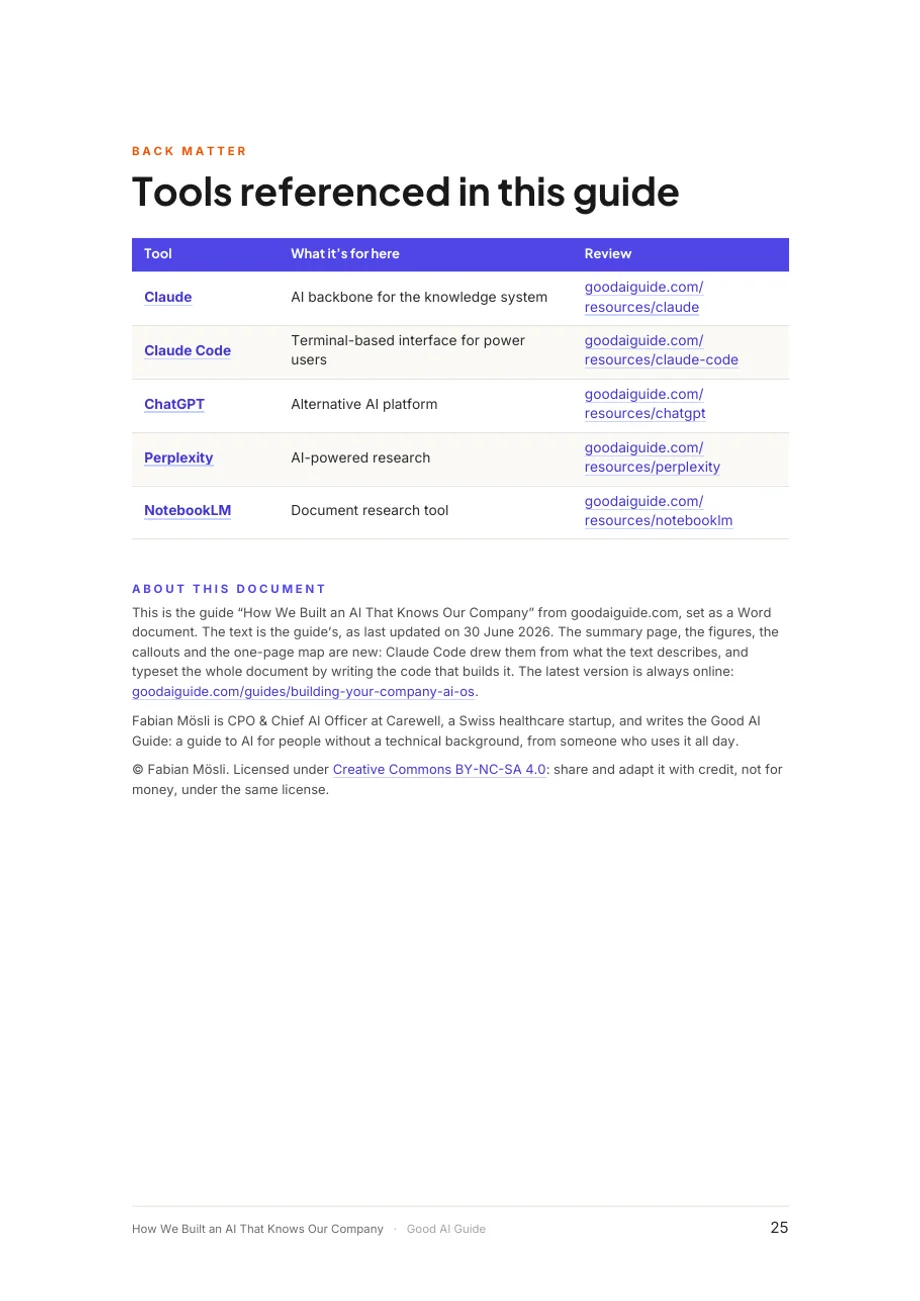

The Word file is editable, with its styles, tick boxes and fonts. The PDF looks the same everywhere.
How to use it
- ← →
- Previous and next pages. On a phone, swipe.
- F
- Full screen, to read it like a document.
- Thumbnails
- Jump to any page.
- Download
- The Word file, editable, or a PDF.
What you’re looking at
How We Built an AI That Knows Our Company is one of the longest guides on this site: how we gave the AI at Carewell a shared, lasting memory of the company, and how you can build the same. Here it is as a Word document of 26 pages. The words are the guide’s, unchanged. Everything around them is new: a cover, a contents page, a one-page summary, a chapter for each section with its name at the top of every page, eight figures, callouts, a landscape page with the whole blueprint on it, and a back cover with a QR code that opens the guide online.
My hunch is that a lot of people don’t know what a Word document can be. Word has real styles, figures with numbered captions, footnotes, sections that turn one page sideways, tick boxes and embedded fonts. I wanted to see what an AI makes of all that when you ask for something amazing.
Why this guide
I asked Claude Code to pick a suitable guide that isn’t too short. It picked this one and gave two reasons. The guide is a blueprint: it describes a cycle, four phases and seven steps, and draws none of them. And it’s the kind of text people pass on to their leadership team, where a Word file is still what gets read, printed and written on.
Pictures where they matter
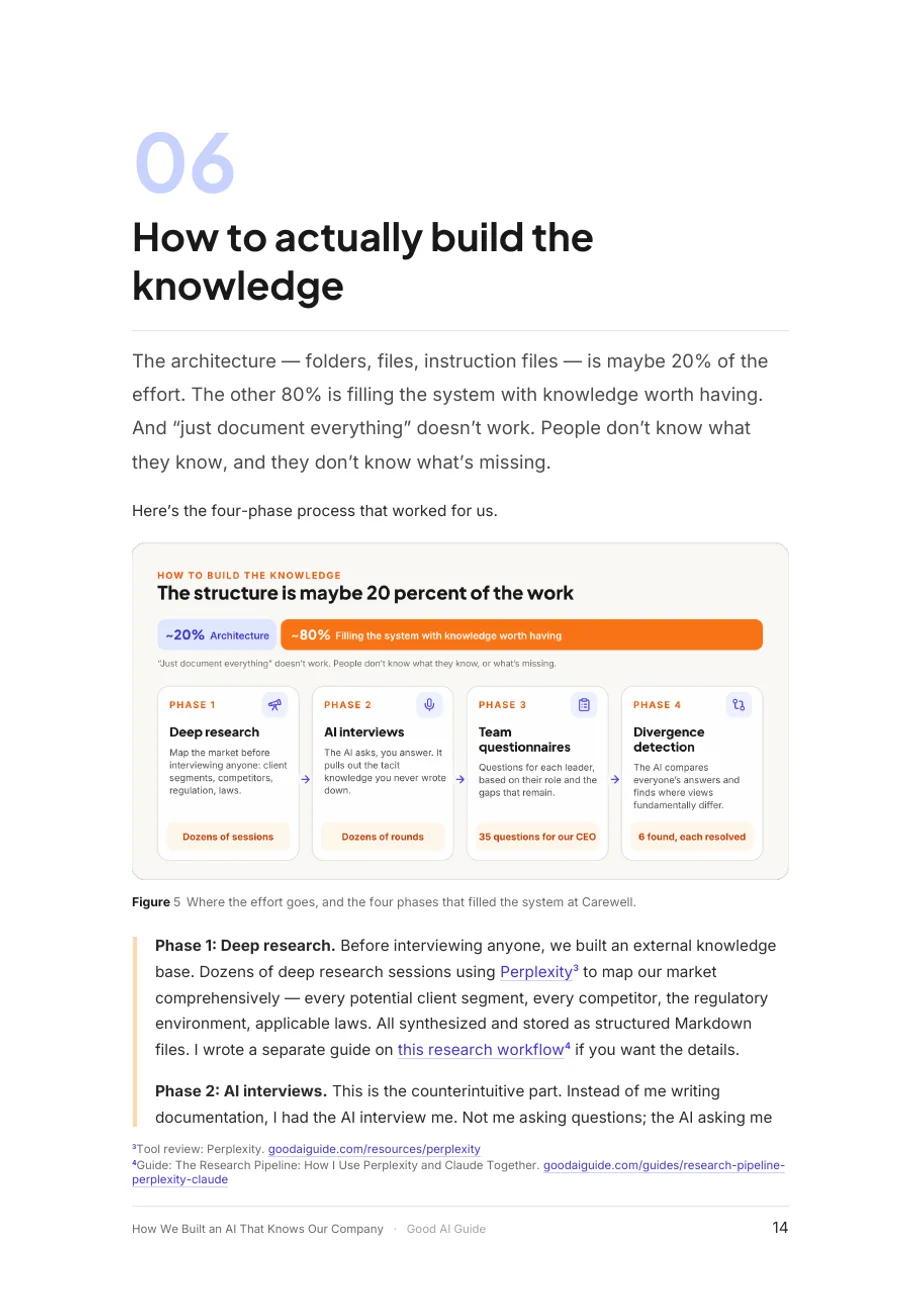
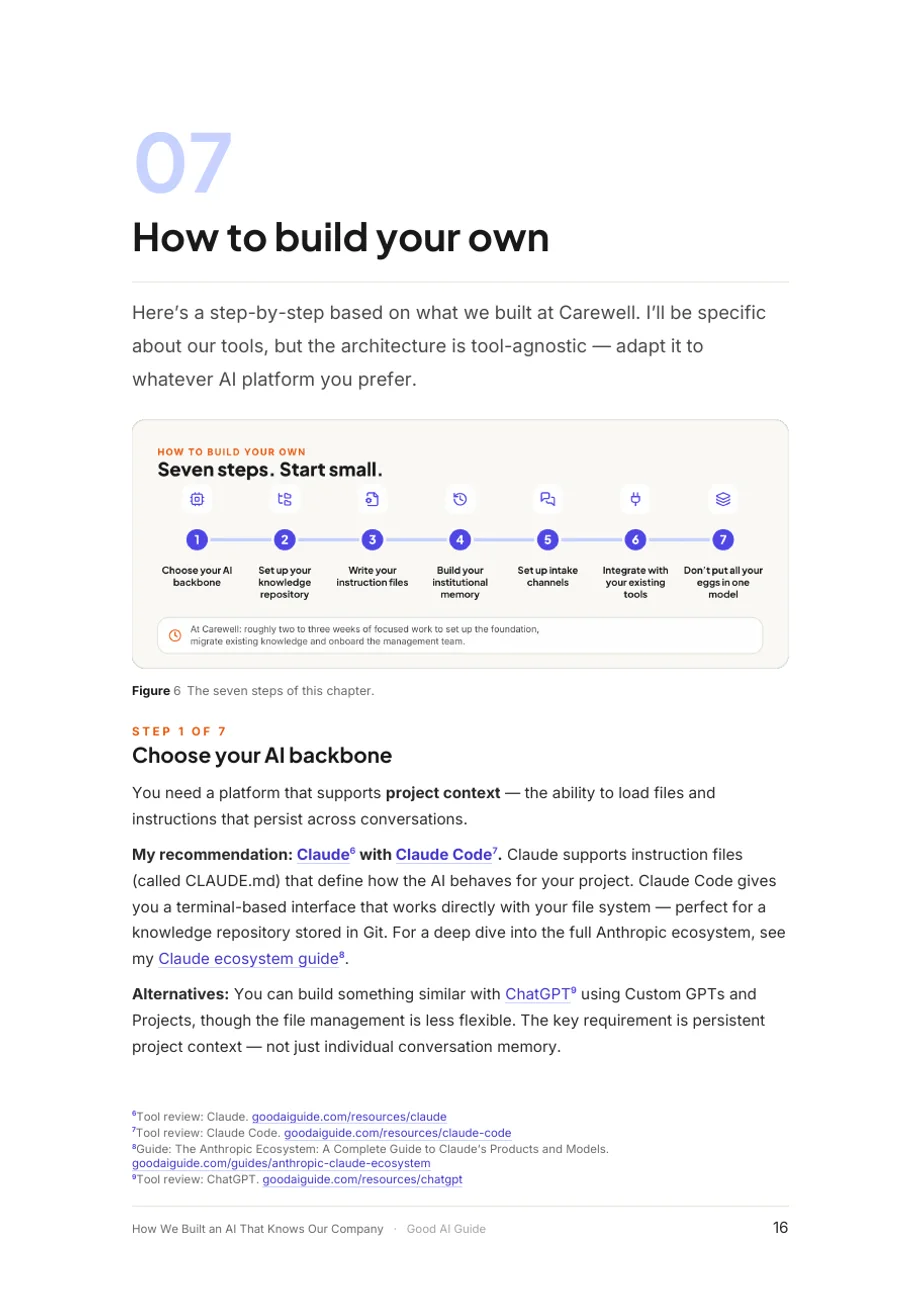
The online guide has one picture, the illustration at the top. My prompt asked for visuals where they matter most, so Claude Code went through the text looking for things it describes in words that are easier to grasp as a picture. It drew eight figures:
- The problem: the same four people, each starting from zero in their own chat, next to one shared memory.
- The three ingredients and how they feed each other.
- Why it compounds: a blank chat that resets after every conversation, next to a system that keeps what it learns. It’s labelled as a sketch, because there are no measurements behind it.
- The flywheel, with the four ways the system corrects itself.
- Where the effort goes: roughly 20 percent structure, 80 percent knowledge, and the four phases that filled the system.
- The seven steps on one line.
- How knowledge gets in, and what the AI is allowed to read.
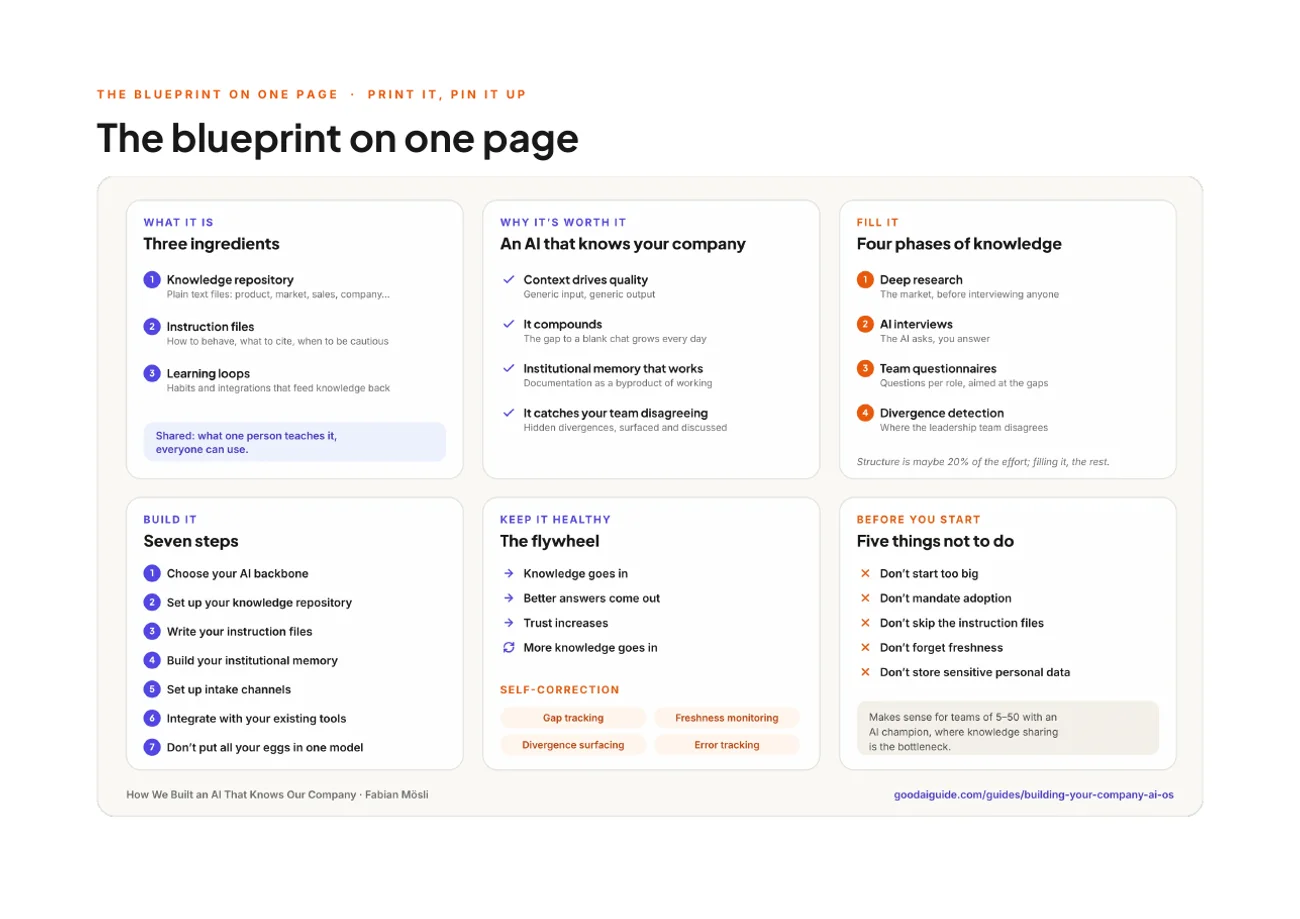
- The whole blueprint on one landscape page, to print and pin up.
Other parts became Word’s own elements instead of pictures, so they stay editable: the four day-to-day scenarios and the five mistakes as cards, the folder structure as a code block you can copy, the readiness check in chapter 9 as tick boxes you can click, and the disagreement between our CEO and me as a record with both views side by side, the way the guide suggests writing one down.
A proper Word file
- Real headings. Word’s navigation pane lists every chapter, the contents page links to each one, and its page numbers are fields Word can update.
- Styles instead of loose formatting. Lead paragraph, pull quote, card, caption: each is a named style. Change the style and the whole document follows.
- Footnotes for paper. The links stay clickable, and the first link to each guide or tool review gets a footnote with its address, so a printed copy still tells you where to look.
- The fonts are in the file. This site’s typefaces are embedded. On a computer without them, LibreOffice still used the ones in the file; Word should do the same.
- Descriptions for screen readers. Every figure has one, and the PDF is tagged, with a bookmark for every chapter.
- The QR code works. A decoder read it before it went on the back cover.
How it was made
My whole prompt is at the bottom of this page. Claude Code works inside this site’s project, so it started with the guide, my writing rules and the site’s design already within reach.
It wrote the document as code: a script reads the guide and builds the Word file from it. The words exist once, in the guide, and when I change the guide, the document can be rebuilt with the new text. Each figure in the chapters is tied to a sentence in the guide; if I rewrite that sentence, the build stops and says which figure lost its place.
Then it turned every page into an image and looked at it, over many rounds. The first render had problems you only see by looking. Every figure was cut off at the height of one line of text, because of a line-spacing setting that LibreOffice, which turns the pages into images, read as a fixed height. The tick boxes showed as ticked although none was. Labels ran out of their boxes in the figures, and several chapters ended with a single line on a page of its own. It fixed each one and looked again.
Last, it checked the file against the specification of the Word format. That found something no render shows: every bookmark had the same number, which the format doesn’t allow.
What isn’t perfect
- Nobody has opened it in Word yet. Word doesn’t run where Claude Code works, so every check, and the previews here, ran in LibreOffice, a free office suite. Word may break a line or a page in a different place. If a page number in the contents is off, right-click it and choose Update Field.
- Every chapter starts on a new page, so some end on a page that’s mostly empty. That’s normal in a printed report; on a screen it’s a lot of white.
- The figures are pictures. You can change their captions in Word, but to change a label inside a figure, you change the code that draws it.
- It’s in English only. The guide is also in German and French; the document isn’t.
- The summary page and the figure labels are written separately. They restate the guide in fewer words, so if I change a fact in the guide, they need a look by hand. The build only checks the sentences the figures hang on.
- Nobody has checked it in Google Docs or Apple Pages. Both use their own fonts instead of the embedded ones. The PDF looks the same everywhere.
What you can learn from this
- Ask for the format you need, and say who will read it. A document for a leadership team that prints things needs different choices than a page people scroll through.
- Ask for pictures where the text describes a structure: a cycle, steps, a before and after, a comparison. Let the AI pick the spots and say why. It’s a good test of whether it understood the text.
- Keep the words in one place. This document is built from the guide, so the long text exists once, and only the short summaries need a second look.
- Make it look at its own work, then check what looking can’t. The rendered pages showed the clipped figures. Only the check against the format’s specification found the duplicate bookmarks.
The prompt, word for word
Copy it, paste it, see what you get
This is everything I typed. Claude Code also had this site's project to read: the guides, my notes on how I write, the colours, the fonts and the illustrations.
New entry for the "What's possible" section. I think a lot of people are not even aware of what amazing Word documents you can build and how you can design and format them. How well you can structure them, how you can enrich them with visualizations, infographics, and so on that you build. Pick a suitable and not too short guide from the collection and build an amazing Word document for it. Let's provide it as the original word plus the PDF. One of the interesting aspects here will be that the guides do not have visuals per se, at least mostly not. Here, you can add some where they matter the most.
For a work document, use the assistant your company approved; if that's Copilot, it already lives inside Word. Attach the text you want laid out, say who will read it and whether they'll print it, and ask which figures it would add, and why, before it builds anything. Most assistants can produce a Word file now. For a document like this one, an agent that can run code and look at the pages it made, such as Claude Code or Codex, gets you much further than a single chat reply. If yours can't look at its own pages, open the file yourself and send it a screenshot of whatever looks wrong.