No. 07 · Case study · Presentation
The Pitch
A 17-slide presentation from one prompt
A talk meant to get people started on learning AI properly, with this site as the way in: 17 slides with speaker notes, a chart, a QR code and a few jokes. Claude Code made the PowerPoint file from one prompt of mine and checked every slide by looking at it. Flip through it here, or download it and give the talk.

![The prompt, as an excerpt: “You can now also create amazing PowerPoint presentations, right? I want you to do one about The Good AI Guide. […] Make it entertaining, smart, witty, funny, lighthearted (but not silly). Make it aesthetically beautiful. […] Don’t ask me questions, just fill the gaps with your best guess.” One prompt, 17 slides: Claude Code wrote the deck as code, rendered every slide, looked at the result and fixed what was off. It could read the whole site first: the guides, the voice, the colours. A brilliant new hire with a proper brief. On the right, thumbnails of all 17 slides, this one included. How it was made, and the full prompt: goodaiguide.com/possible/the-pitch.](/images/possible/the-pitch/slide-16.webp)

Speaker notes
Welcome. One promise before we start: no jargon, nothing to install, and you'll leave with exactly one small thing to do this week.
[Ask the room] Hands up if you've tried ChatGPT, Copilot or Gemini at least once. Now keep your hand up only if it's become part of how you work every day. [If most hands go down again, that gap is what the next 20 minutes are about.]
I'm Fabian. My day job is product and AI at a Swiss healthtech startup, where I'm CPO and Chief AI Officer. On the side, I write the Good AI Guide, a free site that helps people get properly good at AI. Everything in this talk is on that site, so there's no need to take notes.
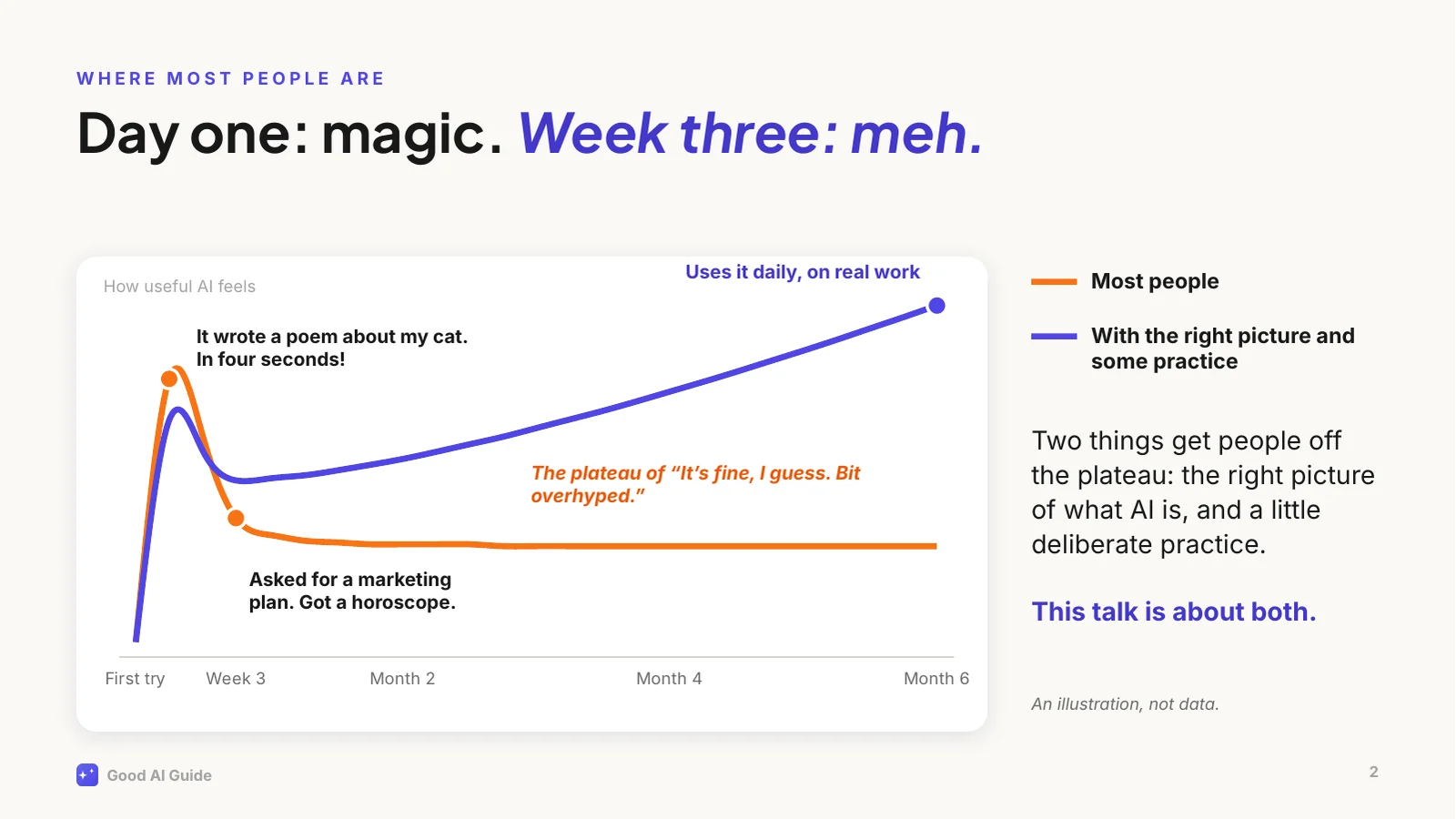
This is the curve I see over and over.
[Point at the peak] The first week is genuinely magical. A poem, a summary, a decent email in seconds. Then you ask it something that matters at work, a plan or a strategy, and you get an answer that would fit any company on earth. A horoscope.
So people conclude it's overhyped, use it for the odd email, and stay there. That flat line is where most people are today, and talent has little to do with it. Two things are missing: the right picture of what you're actually talking to, and a bit of deliberate practice.
The indigo line is what happens with both. The rest of this talk is about how to get onto it.
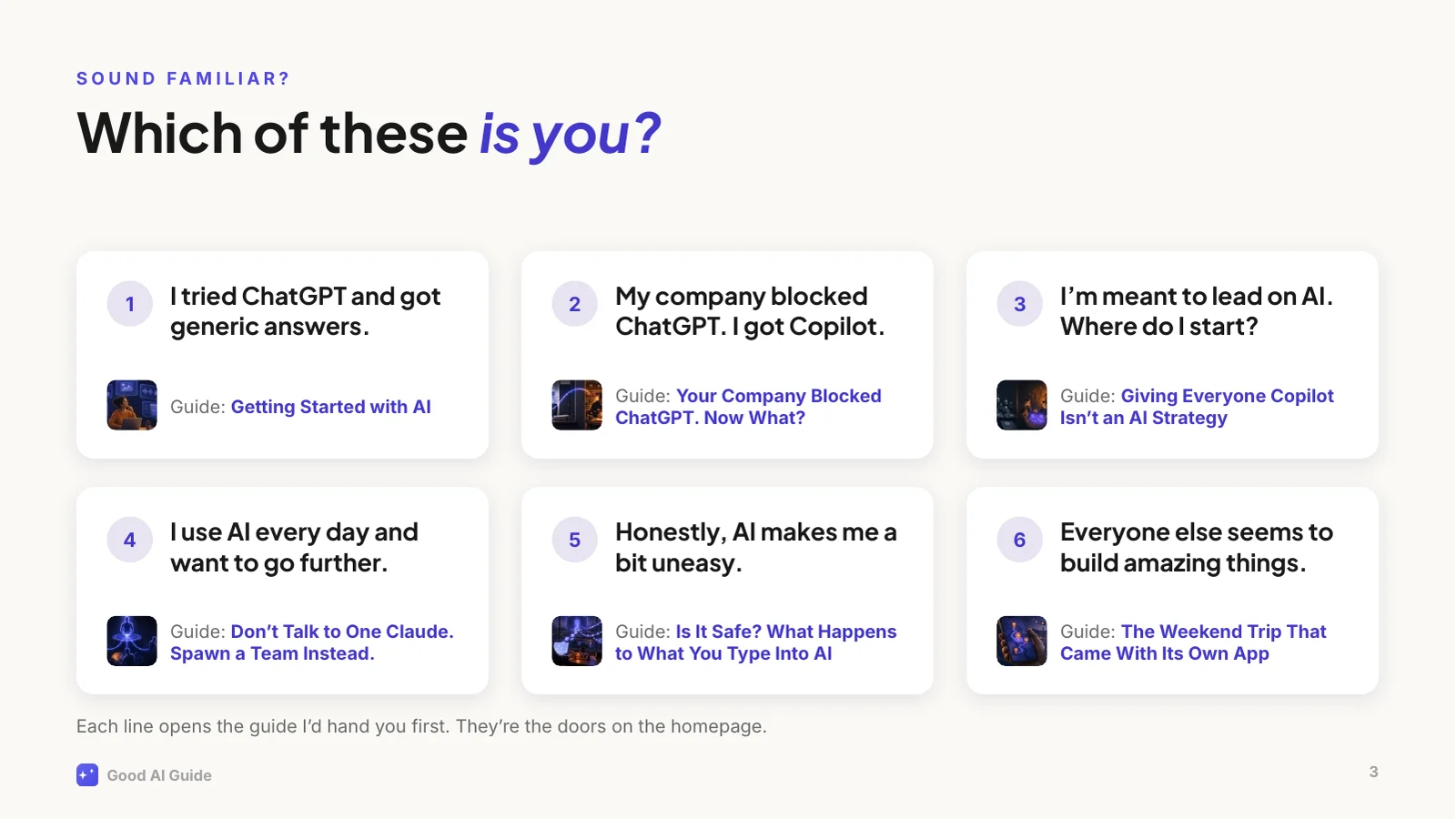
Six situations this site is built around.
[Ask the room] Which one is closest to you? Shout a number. [Wait for a few answers.]
Whatever you picked, you're in good company, and none of them means you're behind. Each has a guide written for exactly that situation, and the site's homepage shows these six lines as doors.
Two worth calling out. In my experience, number 2 is the most common one in larger companies: the good tools are blocked and you got Copilot or an internal chatbot. That's fine, and we'll come back to it. And number 5 is a reasonable place to start: the guide tells you what actually happens to what you type.
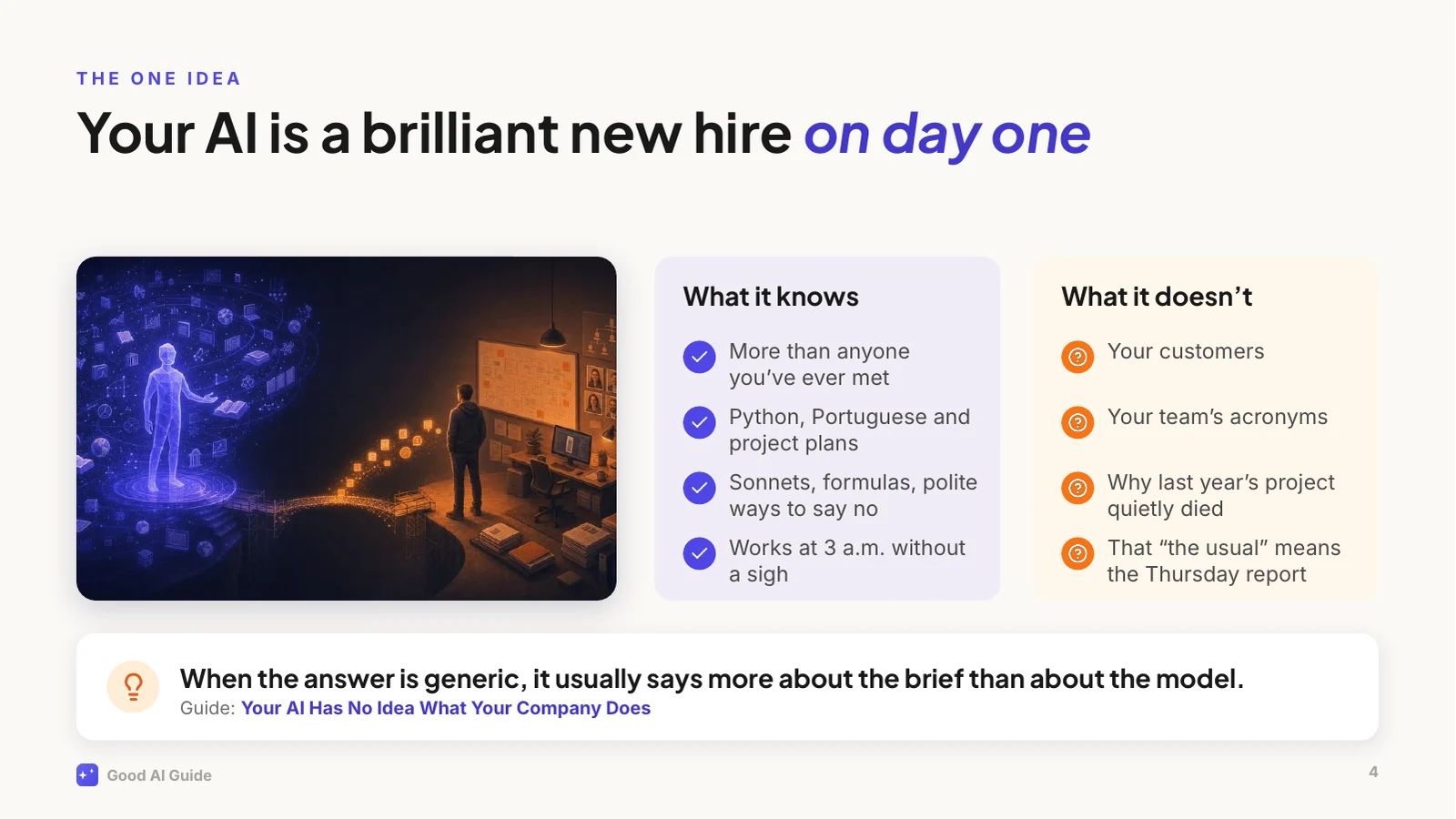
If you remember one thing from today, make it this picture.
Imagine the smartest graduate you've ever hired. Top of their class, has read everything, absurdly fast. It's their first day. They've never met your customers, they don't know your product, and they have no idea why last year's project died.
Now you walk up and say: "Write me a strategy for Q3." You'd get a textbook answer, and you'd never brief a human colleague that way. But that's how most of us talk to AI.
The picture explains the other quirks too. A new hire who doesn't know the answer but wants to please will sometimes fill the gap with a confident guess. That's what people call hallucination.
So the fix is what you'd do with any new colleague: give context, explain what good looks like, and check the first drafts.
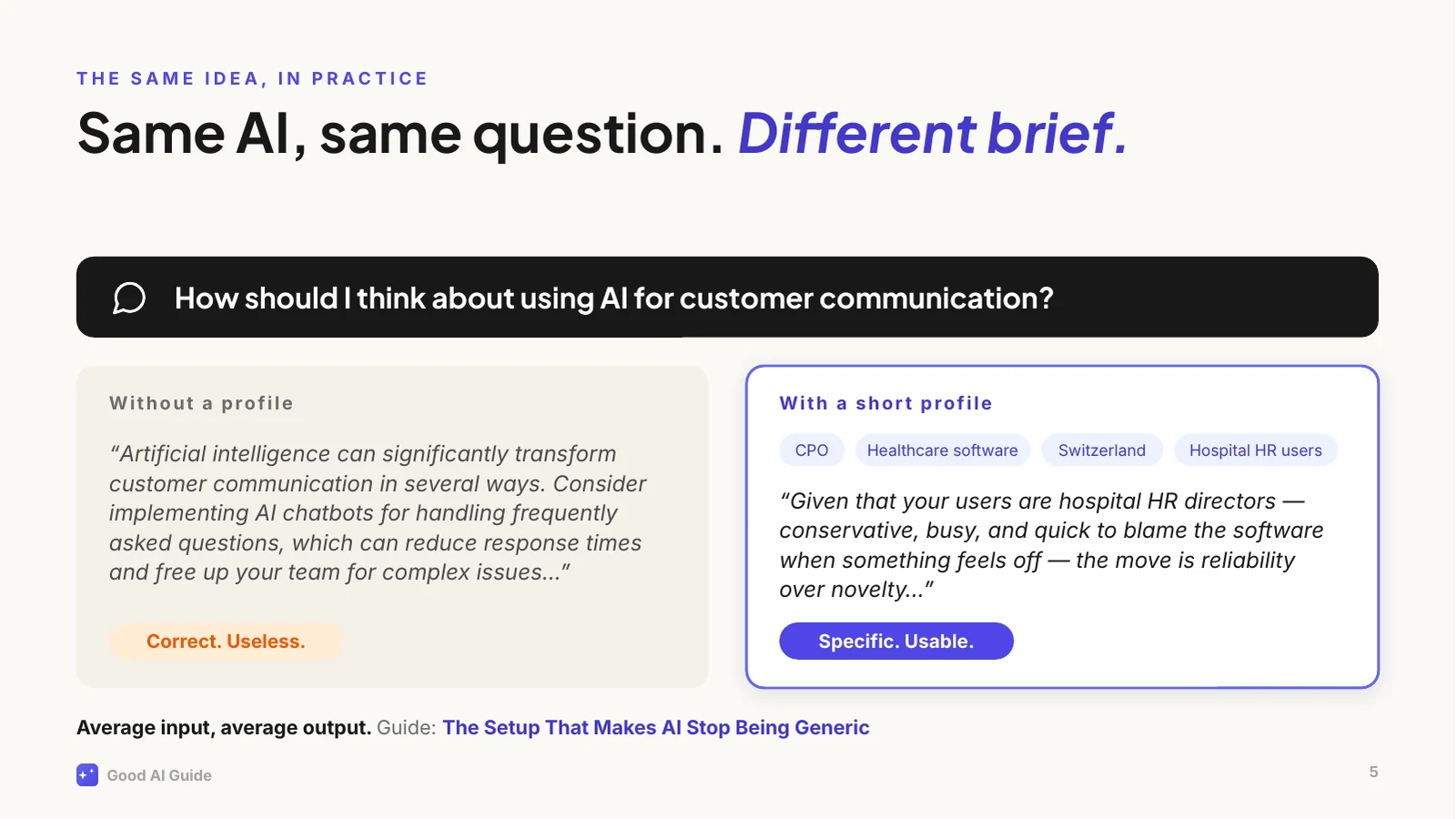
Here's that idea in practice, with a real example from one of the guides.
Same AI, same question. On the left, an account that knows nothing about me. Read it: it isn't wrong. It's addressed to an imaginary average businessperson.
On the right, the same question from an account with a short profile: my role, my industry, my country, who my users are. Now it talks about hospital HR directors and why they distrust anything that feels like a chatbot. That's advice I can act on.
Writing that profile took a few minutes, once. Most assistants let you store a profile like that, so every new chat starts from it. Where yours doesn't, paste it at the top of the chat. That alone moves a lot of people off the plateau.
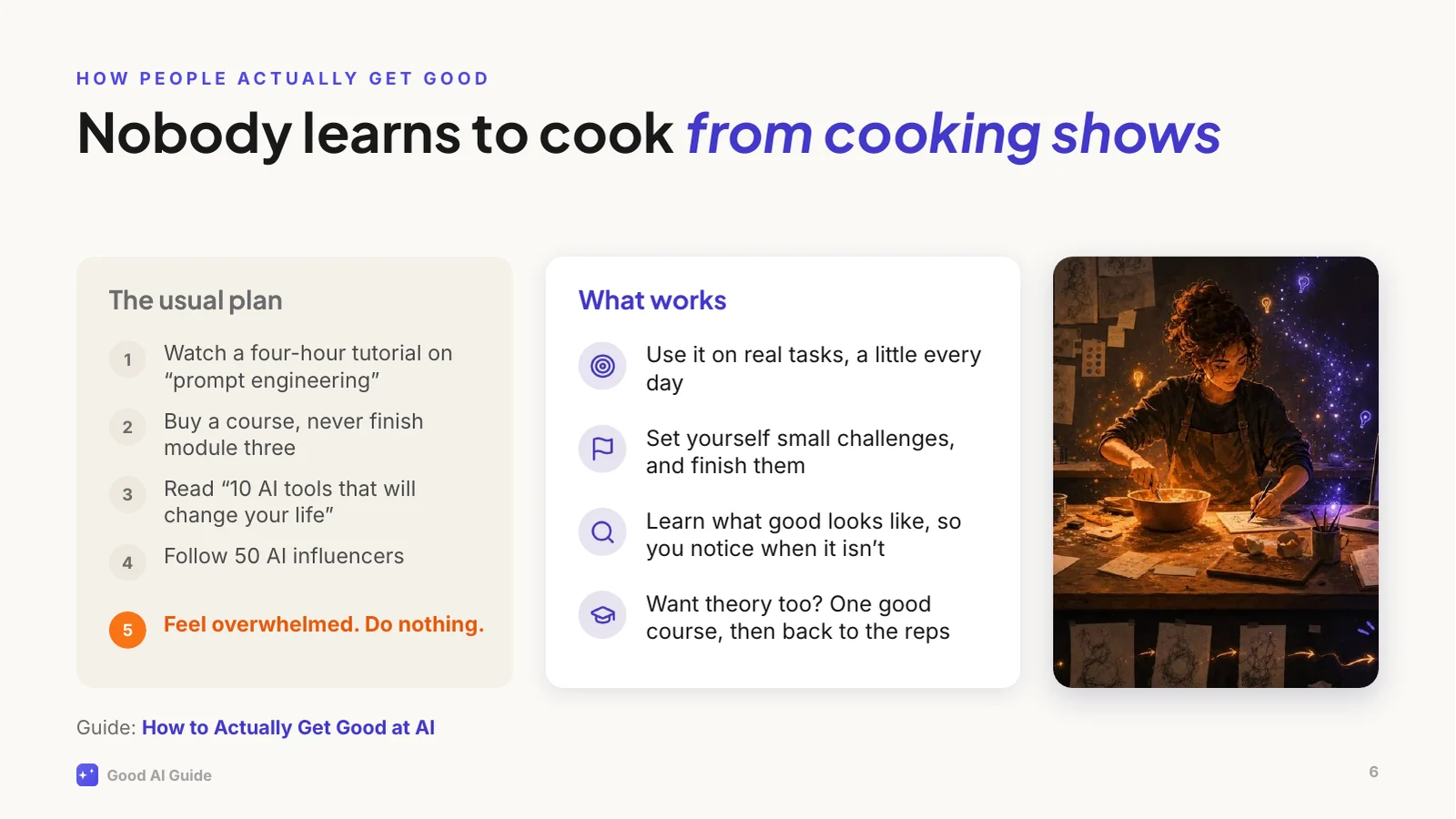
So how do you get from the flat line to the rising one? Not the way most of us try.
[Point left] This is the usual plan, and step five is where it usually ends. The material isn't the problem. Some courses are excellent, and if you want one, take one; there are better courses out there than anything I'd make.
But watching doesn't build the intuition you need, the same way nobody learns to cook from cooking shows. You learn by standing in the kitchen and burning a few things. With AI that means using it on real work, a little every day, with small challenges you actually finish. And it helps to know what good looks like, which is what the site's levels and checklists are for.
That's how I learned most of what I know: by using it constantly, stubbornly, and sometimes badly.
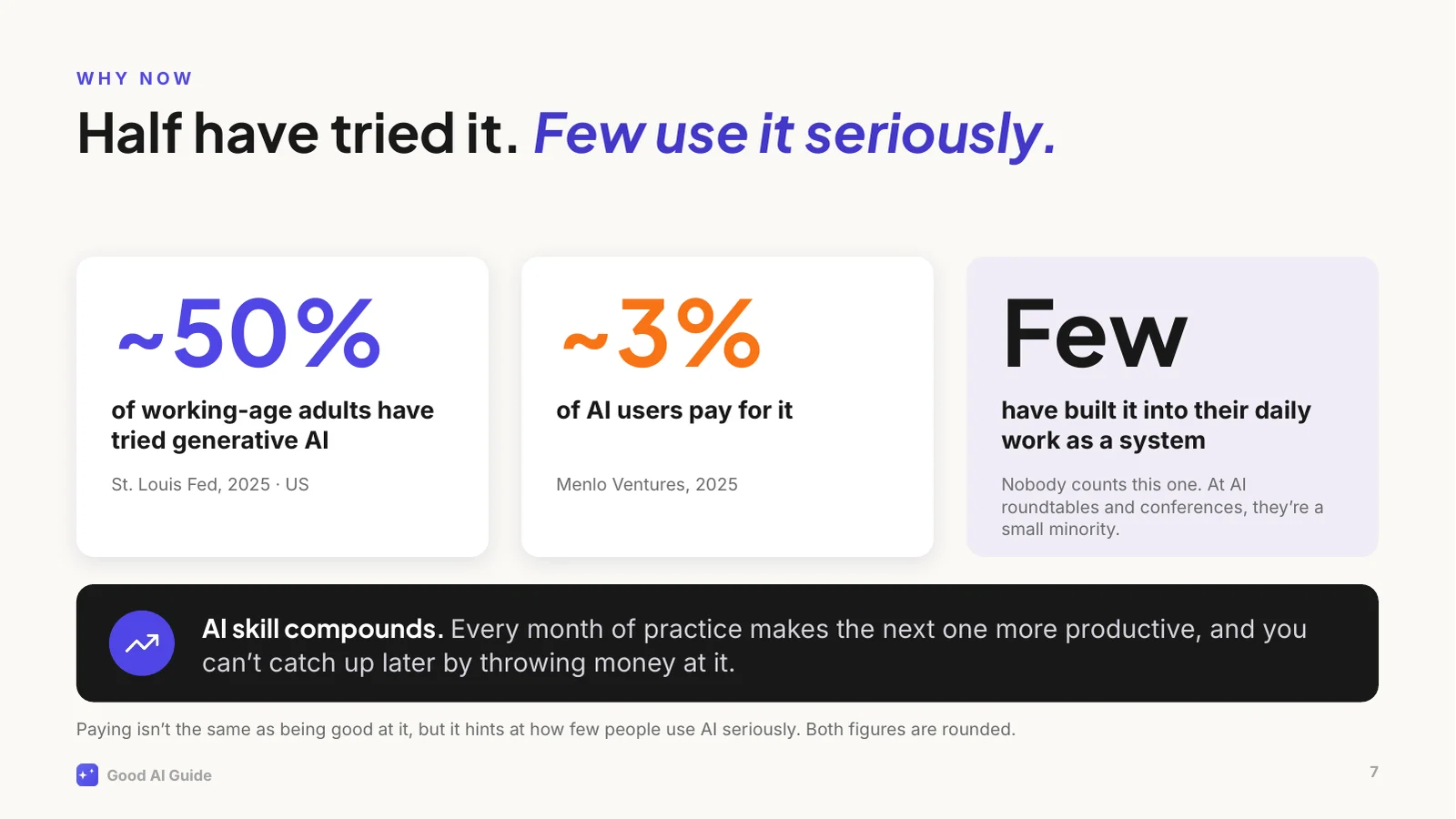
Why bother now? Because it's still early, even if it doesn't feel that way.
In the US, about half of working-age adults have tried generative AI. Only about 3 in 100 AI users pay for it. Paying isn't the same as being good at it, but it tells you how few people take it seriously. And the people who've built AI into their daily work as a system? Nobody counts them. I go to a lot of AI roundtables and conferences, and not long ago I worked in a large corporate myself. In both places, they're a small minority.
The second reason is that AI skill compounds. Every month of practice makes the next month more productive: you spot more uses, you brief better, you learn where to trust it. That's why you can't catch up later by throwing money at it. Being good at AI is still rare, and that won't last.
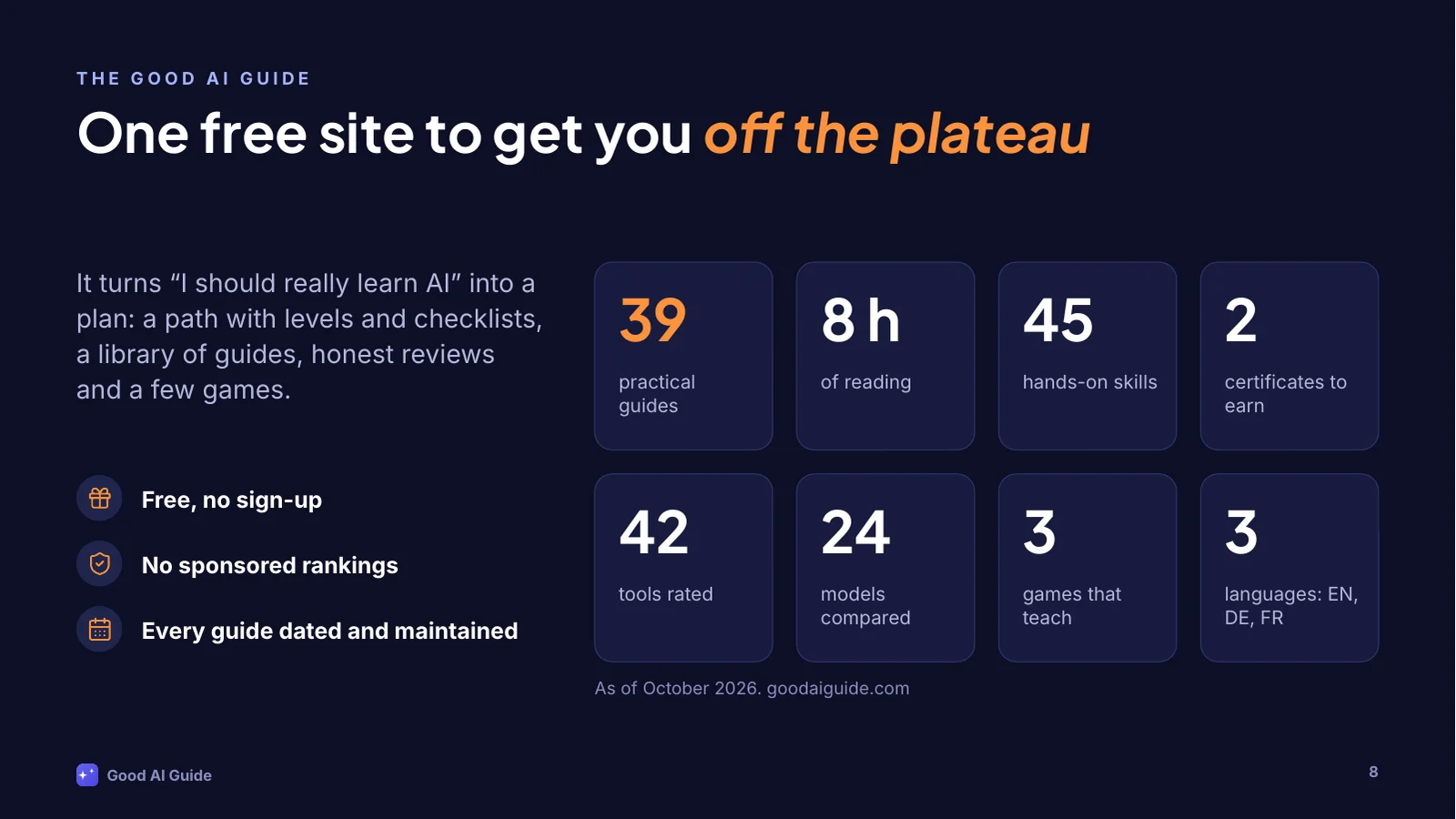
This is where the Good AI Guide comes in. It's a free site I write and maintain on the side. No sign-up, no paywall, and nobody can pay for a rating.
It started as a weekend project: I wanted to see how far I'd get building a proper site with AI tools. It has grown into this: 39 guides, about 8 hours of reading, 45 hands-on skills, 2 certificates, 42 tools with honest ratings, 24 models sorted by the job they're for, and a few games. In English, German and French.
Building it was the easy part. Keeping it current while everything shifts every few weeks is the real work, which is why every guide shows when I last updated it.
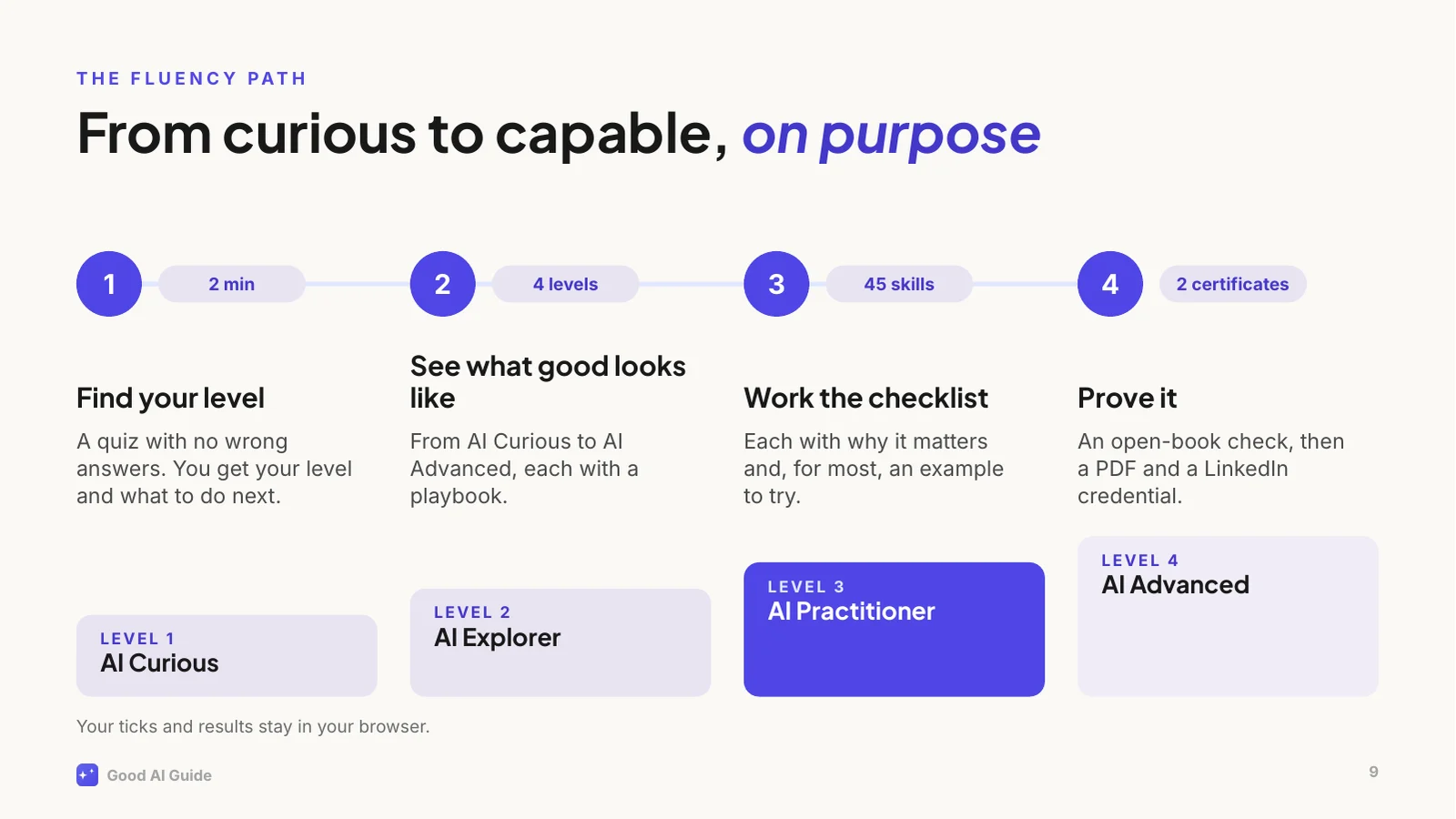
The core of the site is the Fluency Path, because "just use AI more" is terrible advice. You get good at AI the way you get good at a language: deliberately, with reps, and by knowing what good looks like.
Step one is a two-minute quiz with no wrong answers. It places you on one of four levels. Each level has a playbook and a checklist of concrete skills, 45 so far, and every skill says why it matters and usually gives you an example to try.
When you've worked through a level, you can prove it with a certificate: an open-book check, then a PDF and a credential for your LinkedIn profile.
All of it runs in your browser. No account, and your progress never leaves your device.
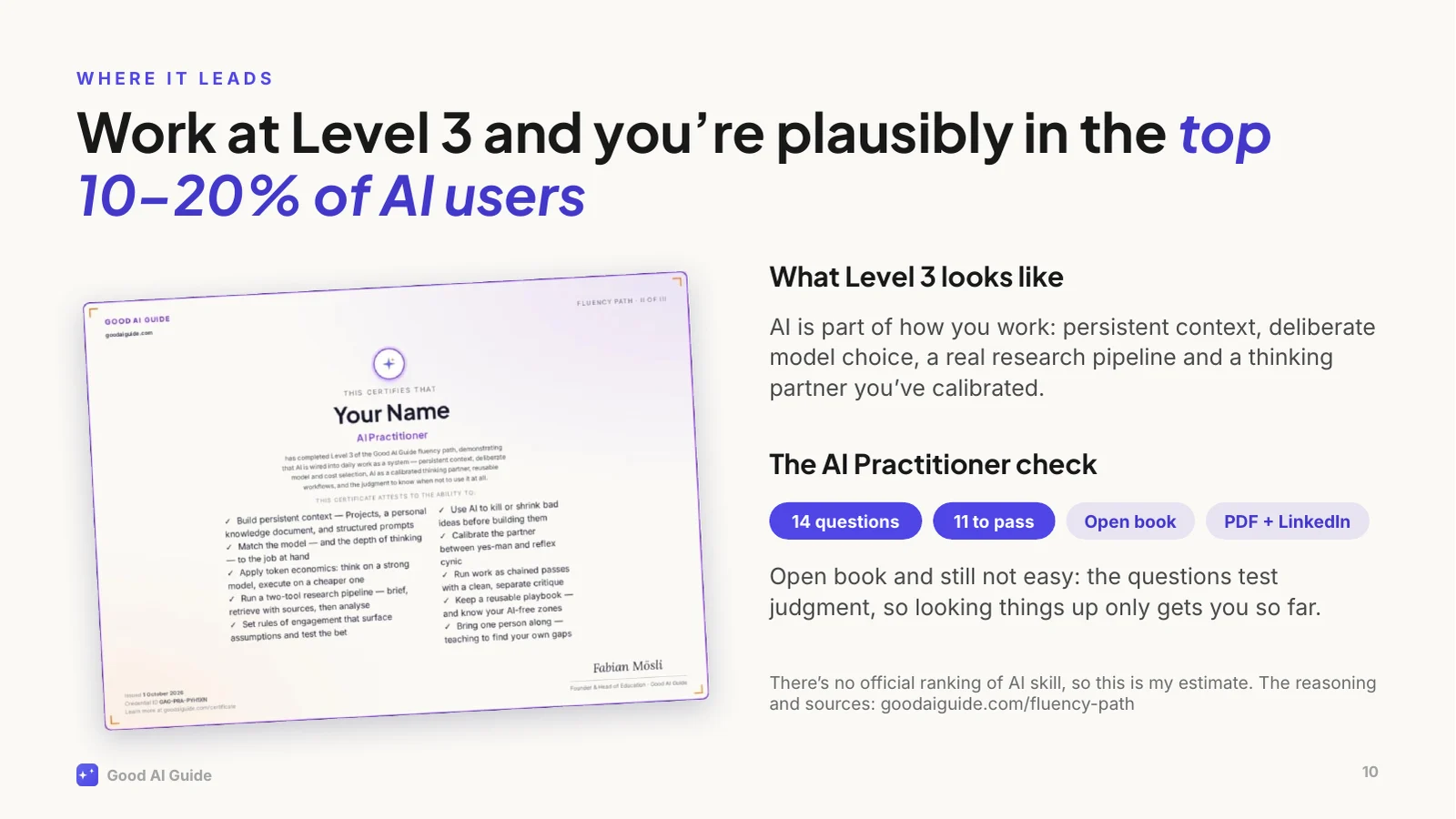
Level 3 is where the effort pays off. It's called AI Practitioner: AI is part of how you work: persistent context, deliberate choice of model, a real research pipeline, and a thinking partner you've calibrated so it doesn't just agree with you. Work like that and you're plausibly in the top 10 to 20 percent of people who use AI. That's my estimate, not an official ranking, and the site explains exactly how I get there.
And yes, there's a certificate. It's open book and still not easy: the questions test judgment, so looking things up only gets you so far. Pass, and you get a PDF and a credential for your LinkedIn profile.
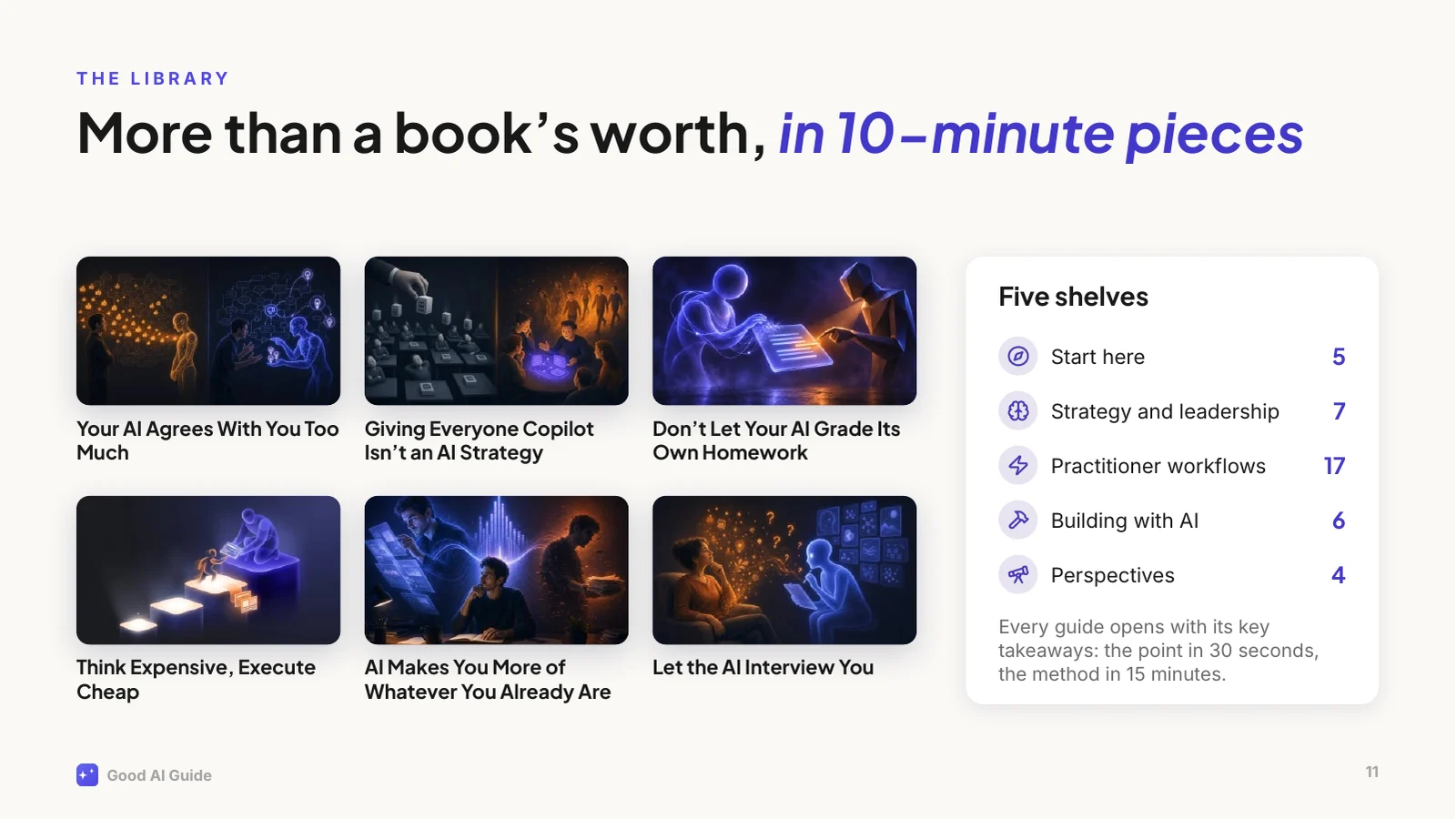
Then there's the library: 39 guides, about 86,000 words, which is more than a book, cut into pieces you can read over a coffee.
They're grouped the way I'd read them: start here, strategy and leadership, practitioner workflows, building with AI, and perspectives. Every guide opens with its key takeaways, so you get the point in 30 seconds and the method in 15 minutes.
A few examples: why your AI agrees with you too much and what to do about it; why giving everyone Copilot isn't an AI strategy; and why you shouldn't let your AI grade its own homework. They come from real use at work, including what didn't work.
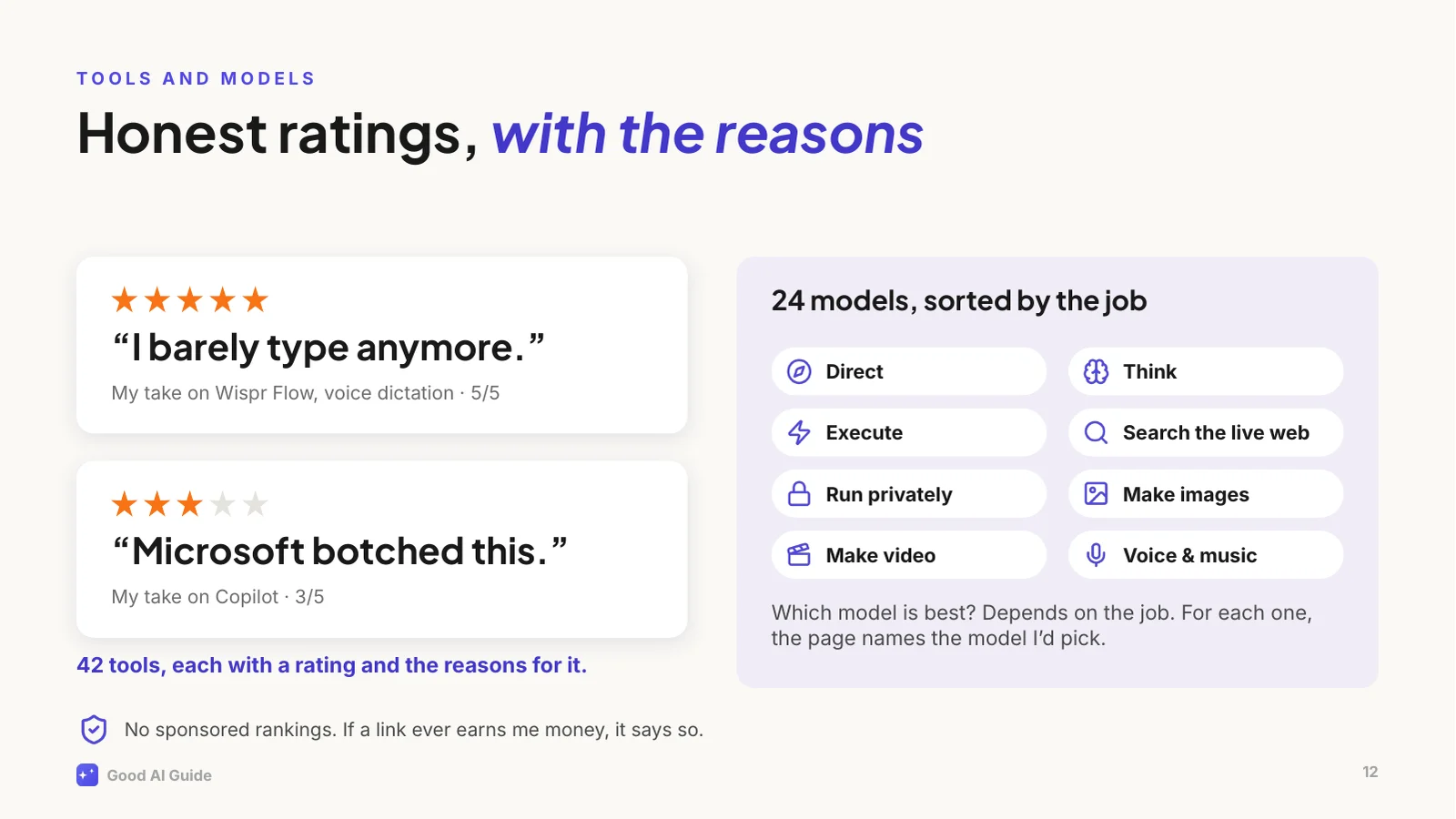
Every week there's a new "best AI tool". The site rates 42 of them, and every rating comes with my reasons: from "I barely type anymore", which is my five-star review of a voice dictation tool, to "Microsoft botched this", which is about Copilot. Copilot's model is fine, by the way. The packaging isn't.
And for "which model should I use?", the models page sorts 24 models by the job you need done: directing, thinking, executing, searching the web, running privately, images, video and voice. For each job it names the one I'd pick.
Nobody pays for a placement. If a link ever earns me money, it'll say so right next to it.
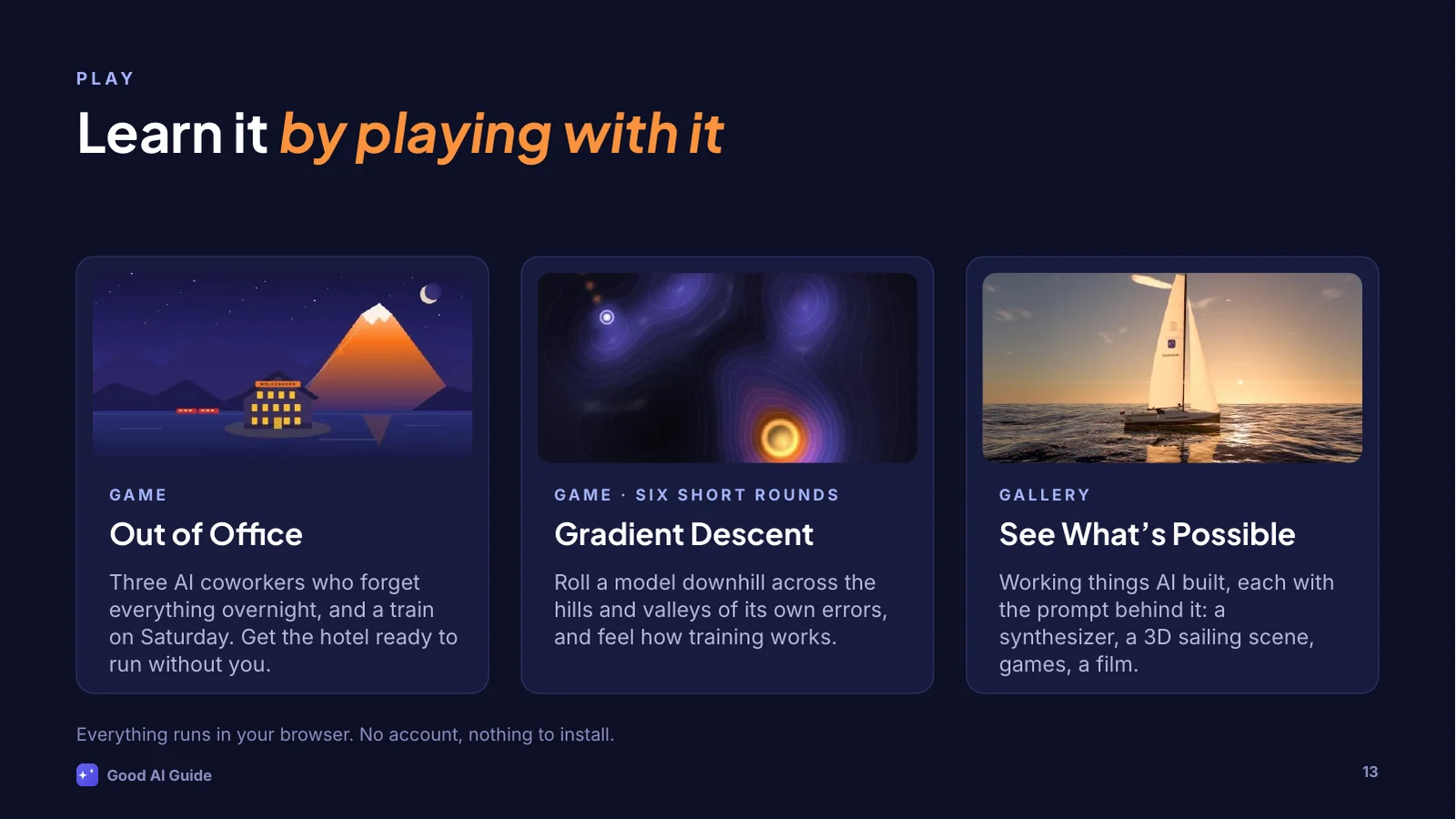
Some ideas click faster when you can poke at them, so the site has games.
Out of Office is the newest one. You run your grandmother's mountain hotel, your train leaves on Saturday, and you've got three AI coworkers from an agency who are fast, confident and slightly wrong. And they forget everything overnight unless you write it down. It teaches delegating to AI better than a slide can, this one included.
Gradient Descent lets you feel how a model is trained, by rolling it downhill across its own errors. And See What's Possible is a gallery of things AI built from a prompt: a synthesizer, a 3D sailing scene, games, a film. Each one comes with the prompt, so you can try it yourself.
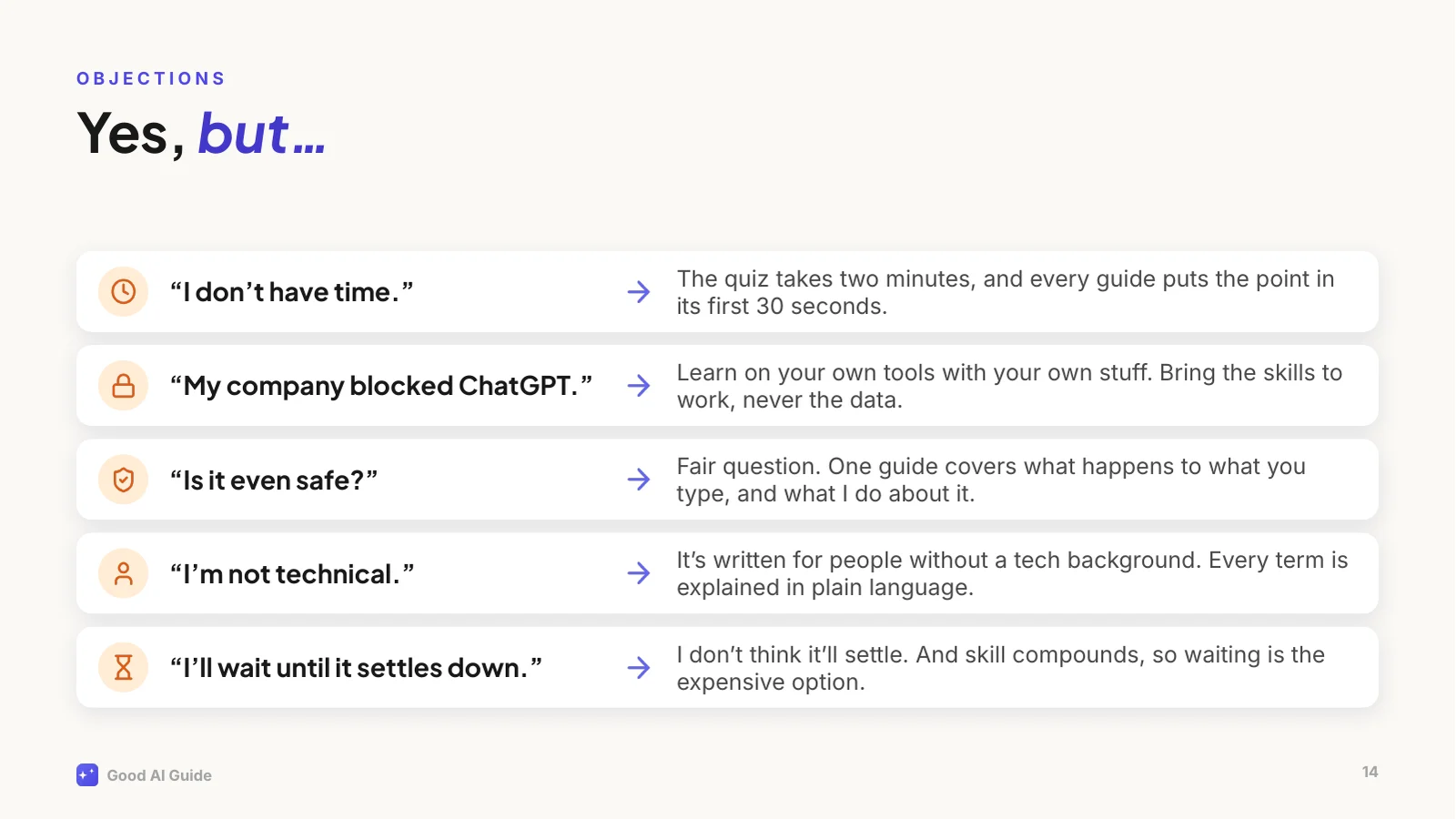
Let's deal with the objections, because I hear them every time.
"I don't have time": the quiz takes two minutes, and every guide puts the point in its first thirty seconds.
"My company blocked ChatGPT": that's normal, and usually sensible. Learn on your own tools with your own material, like planning a trip or drafting a cover letter, and bring the skills to whatever your company gives you. Never the other way round: work data stays in work tools.
"Is it safe?": a fair question, and there's a guide on what actually happens to what you type.
"I'm not technical": I write for people with a real job, no technical background and no time.
And "I'll wait until it settles down": I don't think it will. And because skill compounds, waiting is the expensive option.
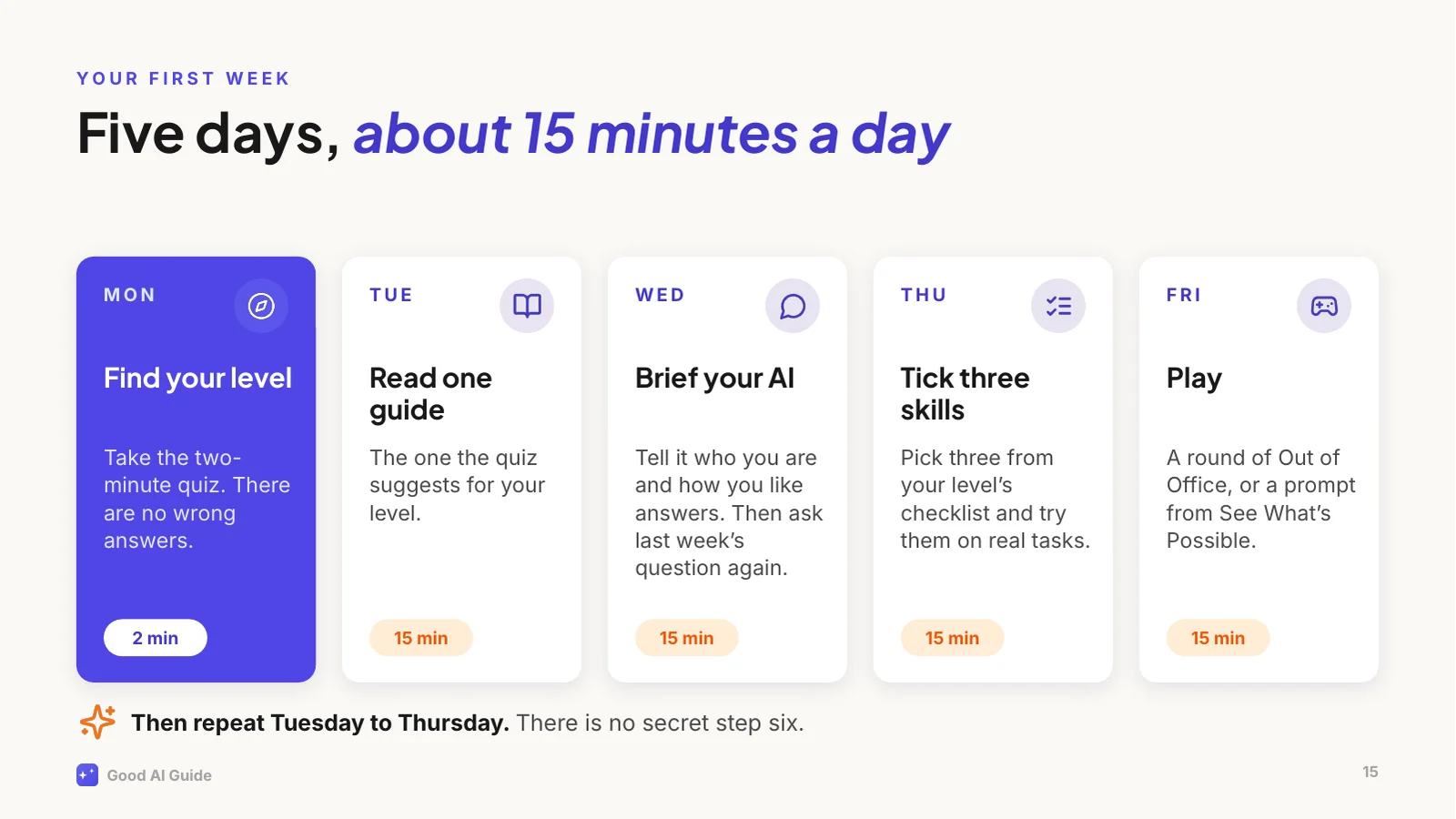
So here's your homework, and it's small.
Monday: take the two-minute quiz. Tuesday: read the guide it suggests for your level, ten to fifteen minutes. Wednesday: brief your AI properly. Tell it who you are, what you do and how you like your answers, then ask it something you asked last week and compare. Thursday: pick three skills from your level's checklist and try them on real tasks, with the tools you're allowed to use at work, or privately with your own stuff. Friday: play. A round of Out of Office, or a prompt from See What's Possible.
Then repeat Tuesday to Thursday. That's the whole method. There is no secret step six.
One more thing.
Everything you've seen in the last twenty minutes, the storyline, the jokes, the charts, the layout and even these speaker notes, was made by Claude Code from one prompt I typed. [Pause.]
It wrote the deck as code, rendered every slide to a picture, looked at them, and fixed what was off.
It could do that well because it was working inside my website's project. It could read every guide, my writing rules, the colours and the fonts. A brilliant new hire with a very good brief. That's this whole talk in one slide.
The full prompt and the story of how it was made are on the site, under See What's Possible.
That's it from me.
If you do one thing today, scan this code and take the quiz. It takes two minutes, there are no wrong answers, and it tells you exactly where to start.
If you'd like to hear when I've learned something worth sharing, there's a newsletter, roughly once a month. And if you'd like to talk about any of this, find me on LinkedIn. I'm always up for a virtual coffee.
[Questions?]
The PowerPoint file is editable and comes with the speaker notes and the fonts.
How to use it
- ← →
- Previous and next slide. On a phone, swipe.
- N
- Speaker notes: what to say on each slide.
- F
- Full screen, to give the talk from your browser.
- Download
- The PowerPoint file, editable and with the notes, or a PDF.
What you’re looking at
Seventeen slides for a talk of about twenty minutes: why most people stall with AI after a few quick wins, the one idea that gets them unstuck (your AI is a brilliant new hire on day one), why it’s worth starting now, what this site has for you, and a plan for the first week. Every slide has speaker notes: what to say with it. The last slide has a QR code that opens the two-minute quiz.
I asked for something entertaining and witty but not silly, that works on its own and gets better when someone talks over it. The jokes are Claude Code’s: “Day one: magic. Week three: meh.” The marketing plan that came back as a horoscope. The first week’s plan, which ends with “There is no secret step six.”
Flip through it above and open the notes, or download it. It’s yours to present: like everything on this site, it’s under a Creative Commons license that lets you use it with credit, as long as you don’t make money with it.
One prompt, then a lot of checking
My whole prompt is at the bottom of this page. I didn’t answer a single question, because I told it not to ask any.
Claude Code works inside this site’s project, so before it wrote a word it could read what the deck needed: the guides, my notes on how I write and what the site never says, the colours, the fonts and the illustrations. It drafted the storyline first, one message per slide. Then it wrote the deck as code: a script that builds the PowerPoint file slide by slide, with the site’s own pictures and numbers.
Then it rendered every slide to an image and looked at it. The first round had real problems: the titles were centred instead of left-aligned, text ran out of its box or into something else on ten slides, and the notes on the chart sat on top of its lines. It fixed them, rendered again and looked again, over several rounds.
One check needed a tool instead of eyes. The QR code on the last slide looked fine, but a QR decoder couldn’t read it: Claude Code had typed out the pattern instead of copying it from the program that generated it. It put in the exact pattern, and the decoder read the address.
Details nobody asked for
- The numbers count themselves. The script counts the guides, hours of reading, skills, tools and models from the site’s content every time it builds the deck. When the site grows, the deck can be rebuilt with the new numbers.
- The fonts travel with the file. The deck uses this site’s two typefaces and carries them inside the PowerPoint file, so it looks the same on a computer that doesn’t have them.
- Slide 16 contains itself. It shows every slide as a thumbnail, including slide 16, which shows slide 16, which shows slide 16. Each round of building and rendering nests it one level deeper; the script does three.
- It’s a proper PowerPoint file. The titles are real titles, so PowerPoint’s outline and its accessibility check find them. The slides are grouped into sections, every illustration has a description for screen readers, and there’s a fade between slides.
What isn’t perfect
- Keynote and Google Slides ignore the fonts in the file and use their own, so the deck looks plainer there. PowerPoint for Windows and Mac can use fonts embedded in a file. The PDF looks the same everywhere.
- The slides were checked in LibreOffice, not PowerPoint. PowerPoint doesn’t run where Claude Code works, so the previews here come from LibreOffice, a free office suite. PowerPoint may break a line or two in a different place.
- It’s fixed boxes. You can change every text, picture and number in PowerPoint, but if you shorten a text, nothing moves up to fill the gap.
- The notes are written for me to speak. If you give the talk, change the introduction on slide 1 and the lines where I talk about myself.
What you can learn from this
- Give it the material first. The deck is specific because Claude Code could read the whole site before writing a slide. In a fresh chat, paste in what you’d give a new colleague: who the audience is, what they should do afterwards, your notes and your numbers. That’s the idea on slide 4, and the long version is in Your AI Has No Idea What Your Company Does.
- Ask for the file you need. Most assistants can produce a PowerPoint file now. Say so, and say what belongs in it, speaker notes included.
- Make it look at its own work. The first render had problems on ten slides, and looking at the pictures found them.
- Test what eyes can’t check. The QR code looked right and didn’t scan. A decoder caught it in a second.
The prompt, word for word
Copy it, paste it, see what you get
This is everything I typed. Claude Code also had this site's project to read: the guides, my notes on how I write, the colours, the fonts and the illustrations.
Next idea for the "What's possible" section. You can now also create amazing PowerPoint presentations, right? I want you to do one about The Good AI Guide. Let's say this presentation will be shown to people to encourage them to finally kick off their AI learning journey, and to fully leverage all that the GAG has to offer. Let's say 15 content slides plus title and end slide. Make it entertaining, smart, witty, funny, lighthearted (but not silly). Make it aesthetically beautiful. Make it pleasant to read. Add whatever it takes to make a good presentation. The presentation should work on its own and get even better if someone accompanies it with a talk. Don't ask me questions, just fill the gaps with your best guess. This is to show off your capabilities, not to 100% fit into a realistic scenario.
In a chat assistant, paste in or attach the material the deck should be built from, and ask for the storyline before the slides. For a deck like this one, an agent that can run code and look at what it made, such as Claude Code or Codex, gets you much further than a single chat reply. If yours can't look at its own slides, open the file yourself and send it a screenshot of whatever looks wrong.